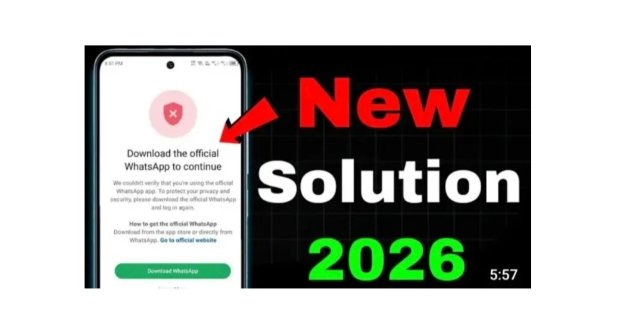
Download the Official WhatsApp to Continue Error: Causes, Fixes, and Complete Guide
If you are trying to open WhatsApp and suddenly see the message “Download the official WhatsApp to continue”, you may be confused because WhatsApp was already installed on your phone. This error usually means that WhatsApp’s system is unable to verify the app as an official version or has detected a problem with the installation, app signature, device environment, or the way WhatsApp was installed.
The good news is that this problem can often be fixed without losing your WhatsApp account. In this guide, we will explain what the “Download the official WhatsApp to continue” error means, why it happens, and what you can do to fix it safely.
What Does “Download the Official WhatsApp to Continue” Mean?
The “Download the official WhatsApp to continue” message is a security-related warning. WhatsApp wants users to access their accounts through an authentic and properly verified version of its application.
When WhatsApp cannot verify the installed application correctly, it may prevent the app from continuing until an official installation is detected.
This can happen even if you did not intentionally install a modified version of WhatsApp. For example, an incorrectly restored app, an outdated APK, a corrupted installation, or a device-level modification can sometimes cause verification problems.
WhatsApp generally recommends obtaining the application from an official app store or from its official website rather than downloading APK files from unknown third-party websites.
Why Does This Error Appear?
There are several possible reasons for this message.
1. You Are Using a Modified Version of WhatsApp
One of the most common causes is using a modified WhatsApp application. Examples can include unofficial versions that add additional features or customization options.
These applications may use altered application packages or signatures. WhatsApp can detect that the installation does not match the official version and may block access.
If you have previously used a modified WhatsApp application, uninstalling it and installing the official WhatsApp application can often resolve the problem.
2. WhatsApp Was Installed From an Untrusted APK
Android allows applications to be installed from APK files. However, not every APK available online is trustworthy or identical to the official application.
An APK downloaded from an unknown website may be outdated, modified, repackaged, or improperly signed. Even if the application looks exactly like WhatsApp, its package may not pass WhatsApp’s verification checks.
For this reason, you should avoid downloading WhatsApp APK files from random websites.
3. Your WhatsApp Installation Is Corrupted
Sometimes the application itself becomes damaged because of an interrupted update, storage problems, system errors, or an unsuccessful installation.
In this situation, WhatsApp may fail to verify its own files correctly.
A clean installation of the official application can solve the problem.
4. You Are Using an Outdated WhatsApp Version
WhatsApp regularly releases updates containing security improvements, bug fixes, compatibility changes, and new features.
If your installed version is extremely old, it may no longer work properly with WhatsApp’s current systems.
Updating WhatsApp through the official app store is therefore one of the first solutions you should try.
5. Your Phone Has Been Modified
Some Android devices have modifications that can affect application verification. For example, rooting a phone, modifying system files, unlocking certain system protections, or using specialized frameworks can sometimes interfere with security checks.
If your device has been modified, WhatsApp may have difficulty verifying the environment in which it is running.
6. You Restored WhatsApp From an Unofficial Source
Restoring an application from a third-party backup or cloning environment can sometimes produce unexpected verification problems.
This is especially relevant if WhatsApp was transferred between phones using unofficial tools or if an application-cloning system was used.
7. WhatsApp Is Running in a Clone or Dual-App Environment
Some Android phones provide built-in app cloning or dual-messenger features. These features can be useful when you need two accounts, but certain configurations may cause compatibility or verification issues.
If the error appears only on a cloned version of WhatsApp, try installing and opening the official version normally.
How to Fix “Download the Official WhatsApp to Continue”
The following methods can help you troubleshoot the problem.
Method 1: Install WhatsApp From the Official App Store
The safest solution is to remove the problematic installation and install WhatsApp again from an official source.
Before uninstalling WhatsApp, make sure you have access to your account and, if possible, create a current backup of your chats.
On Android:
1. Open the Google Play Store.
2. Search for WhatsApp.
3. Verify that the application is published by WhatsApp LLC.
4. Update the application if an update is available.
5. If necessary, uninstall the existing version.
6. Install WhatsApp again from Google Play.
7. Open WhatsApp and verify your phone number.
Avoid installing a random APK immediately after seeing the error because the problem may be caused by an unofficial version in the first place.
Method 2: Clear WhatsApp Cache
A corrupted cache can occasionally cause application problems.
On many Android phones, you can try:
Settings → Apps → WhatsApp → Storage → Clear Cache
The exact menu names may vary depending on your phone manufacturer and Android version.
Clearing the cache is generally different from clearing the app’s data. Do not select options that erase application data unless you understand the consequences and have a backup.
After clearing the cache, restart WhatsApp and check whether the message is still displayed.
Method 3: Update Google Play Services
On Android devices, Google Play Services provides important functionality used by many applications.
If Google Play Services is outdated or experiencing a problem, certain applications may behave unexpectedly.
Open the Google Play Store and make sure Google Play Services and other important system components are updated where updates are available.
Then restart your phone and try WhatsApp again.
Method 4: Restart Your Phone
A simple restart can sometimes fix temporary software problems.
Close WhatsApp, restart the device, wait for the phone to finish loading, and then open WhatsApp again.
Although this solution sounds basic, it is worth trying before performing more complicated troubleshooting.
Method 5: Check Your Phone’s Date and Time
Incorrect date and time settings can interfere with secure connections and application verification.
Open your phone’s date and time settings and enable automatic date and time if available.
Also make sure that your phone is connected to the internet.
After correcting the time, restart WhatsApp.
Method 6: Remove Unofficial or Modified WhatsApp Versions
If you have used a modified WhatsApp application, remove it before installing the official version.
Do not keep multiple unofficial versions installed and expect the official application to automatically replace them.
Before removing anything, make sure your important chats and media are backed up.
Afterward, install the official WhatsApp application and verify your number again.
Method 7: Disable App Cloning Temporarily
If you are using WhatsApp through a cloned-app feature, temporarily disable the clone and install the normal WhatsApp application.
Different Android manufacturers use different names for app cloning, including features such as Dual Apps, App Clone, Dual Messenger, or similar options.
The location of this setting depends on your phone model.
Method 8: Check for Root or System Modifications
If your phone is rooted or has heavily modified system software, security verification may not work as expected.
If you recently modified your device and the WhatsApp error appeared afterward, the modification may be related to the problem.
For ordinary users, returning the device to its standard software configuration may be necessary.
However, you should not modify system files simply to bypass WhatsApp’s security checks.
Method 9: Reinstall WhatsApp Carefully
If none of the previous methods work, a clean installation may be the best option.
First, make sure your chats are backed up if you can still access WhatsApp.
Then:
1. Uninstall WhatsApp.
2. Restart your phone.
3. Open the official app store.
4. Download the official WhatsApp application.
5. Install it.
6. Open WhatsApp.
7. Enter your phone number.
8. Complete verification.
9. Restore your backup if WhatsApp offers the option.
This removes many problems caused by corrupted or modified installation files.
Will Uninstalling WhatsApp Delete My Chats?
Uninstalling WhatsApp can potentially remove locally stored application data, so you should be careful.
If you have a valid cloud backup, you may be able to restore your chats after reinstalling WhatsApp. However, you should not assume that every message, photo, video, or document will automatically be recoverable.
Before uninstalling WhatsApp, make sure your backup is current whenever possible.
If WhatsApp cannot open because of the official-version error, recovering a fresh backup may not be possible from inside the application. In that situation, be especially careful about deleting the existing installation.
Is It Safe to Download WhatsApp From Third-Party Websites?
It is generally safer to obtain WhatsApp from an official source.
Third-party APK websites can contain outdated or modified versions of applications. Some APK files may also be repackaged with unwanted software.
If a website tells you to install a special “anti-ban,” “unlocked,” or “official WhatsApp fix” APK, be cautious.
The safest approach is to use the official WhatsApp application and keep it updated.
What If the Error Appears Even With Official WhatsApp?
Sometimes the issue can continue even after installing the official application.
If that happens, check the following:
– Confirm that the application was installed from a trusted official source.
– Make sure WhatsApp is updated.
– Restart your phone.
– Update Android and Google system components.
– Check your internet connection.
– Remove cloned or modified WhatsApp installations.
– Check whether your device software has been modified.
– Try again after some time if WhatsApp is experiencing a temporary service issue.
– Contact WhatsApp support if the problem continues.
You should also make sure you are using the correct official application for your device.
Can VPN Cause This Error?
A VPN does not necessarily cause the “Download the official WhatsApp to continue” message. However, VPNs, proxy configurations, private DNS settings, or unusual network configurations can sometimes create connection or verification problems.
If you are troubleshooting WhatsApp, temporarily disable your VPN and connect using a normal trusted internet connection.
This does not mean that every VPN is unsafe or that using a VPN automatically causes WhatsApp verification problems.
Can Changing the Phone Number Fix It?
Changing your phone number is usually not the appropriate solution for an official-app verification error.
The problem is normally related to the application installation, device environment, or verification process rather than the phone number itself.
Do not change your number simply because WhatsApp displays this message.
First, troubleshoot the application.
What About WhatsApp Business?
WhatsApp Business is a separate official application designed for businesses. If you are using WhatsApp Business, make sure you have installed the legitimate application from an official source.
The same general troubleshooting principles apply: update the application, avoid modified versions, check the device environment, and reinstall from an official source if necessary.
How to Avoid This Error in the Future
The best way to prevent this problem is to maintain a clean and official WhatsApp installation.
Always download WhatsApp from a trusted official source. Keep the application updated and avoid modified versions that promise extra features.
You should also avoid installing suspicious APK files claiming to be WhatsApp updates.
Keep your phone’s operating system updated and use a reliable backup method for your chats.
If you use app-cloning features, make sure the version of WhatsApp you are running is supported and installed correctly.
Frequently Asked Questions
Why does WhatsApp say “Download the official WhatsApp to continue”?
The message generally means WhatsApp cannot properly verify the installed application. This can happen because of a modified app, unofficial APK, corrupted installation, outdated software, cloning, or device modifications.
Do I need to buy WhatsApp again?
No. The official WhatsApp application itself is not something you should need to purchase in order to fix this verification message.
Can I fix it without losing my chats?
Possibly. If your chats are backed up, reinstalling the official WhatsApp application may allow you to restore them. However, you should always check your backup situation before uninstalling the application.
Should I download an APK from another website?
It is better to use an official source rather than downloading an APK from an unknown website. Third-party APK files can be modified or outdated.
Does this mean my WhatsApp account is permanently banned?
Not necessarily. The “Download the official WhatsApp to continue” message primarily points toward an application verification issue. It does not automatically mean that your account has been permanently banned.
Can a modified WhatsApp cause the problem?
Yes. Modified WhatsApp applications can interfere with WhatsApp’s security and verification systems and may result in restrictions or errors.
Final Thoughts
The “Download the Official WhatsApp to Continue” error can be frustrating, especially when you believe you are already using WhatsApp. In most cases, the first thing to investigate is whether the application is genuinely official and whether it was installed correctly.
Start by checking your WhatsApp installation, updating the application, restarting your phone, and removing any unofficial or modified versions. If necessary, create or verify a backup before performing a clean reinstall.
Most importantly, avoid suspicious APK files and websites promising to bypass WhatsApp’s security checks. Installing unofficial software may make the original problem worse and can put your account, chats, and personal information at risk.
If the error continues after installing the official version and your phone is running standard software, the best next step is to use WhatsApp’s official support channels. Provide them with the exact error message, your device information, and details about when the problem started.
By keeping WhatsApp updated and using the official application, you can reduce the chances of encountering this verification problem again.
Dear WhatsApp Team,
I am currently unable to access my WhatsApp account because I am receiving the message “Download the official WhatsApp to continue.”
To the best of my knowledge, I have been using the official WhatsApp application and have complied with all WhatsApp Terms of Service.
I respectfully request a review of my account and ask that access be restored if this restriction was applied by mistake.
Thank you for your time and support.
Sincerely,
[Your Name]
Phone Number: [Your Number]