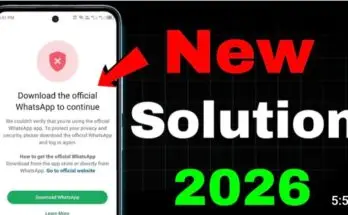
What Does “Download the Official WhatsApp to Continue” Mean
The message means that WhatsApp could not verify the application or device environment during login or phone number registration.
The message may appear with wording such as:
- “Download the official WhatsApp to continue.”
- “We couldn’t verify that you’re using the official WhatsApp app.”
- “To protect your privacy and security, please download the official WhatsApp app and log in again.”
- The purpose of this verification is to prevent unsupported or modified applications from accessing WhatsApp accounts.
Main Causes of the WhatsApp Official App Error
Using a Modified WhatsApp App: One of the most common causes is using an unofficial WhatsApp modification. Examples include: GB WhatsApp FM WhatsApp WhatsApp Plus YoWhatsApp Other modified WhatsApp packages These versions may provide additional customization options, but they are not the standard WhatsApp application. If you previously used a modified version, uninstall it before installing the official application.
Using a Cloning or Multi Space App
App cloning environments can sometimes create compatibility problems.
This is especially relevant if you are trying to run several WhatsApp accounts through a third party cloning application.
Some users have reported receiving the official app warning while using cloned or virtualized Android environments. This means that simply installing the official WhatsApp APK inside a cloning environment may not always solve the problem. (GrapheneOS Discussion Forum)
If possible, test WhatsApp directly on your phone without a third party cloning environment.
Device Certification Problems
Another possible cause is Android device certification.
Recent user reports show cases where WhatsApp was installed from Google Play but still displayed the official app warning because the device was not Play Protect certified. (Google Help)
You can check your device certification through the Google Play Store.
Open Google Play Store.
Tap your profile picture.
Open Settings.
Select About.
Look for Play Protect certification.
If the device is not certified, WhatsApp verification may not work correctly.
Modified or Custom Android Systems
Rooted phones, custom ROMs, unlocked bootloaders, and modified Android environments can sometimes create compatibility problems.
Recent reports from users running modified Android systems show that WhatsApp’s verification can fail even when the application itself comes from an official source. (GitHub)
If you recently changed your phone’s operating system, unlocked the bootloader, or installed a custom ROM, this could be relevant to the problem.
Outdated WhatsApp Version
An outdated WhatsApp version can also create compatibility issues.
Check Google Play Store for updates.
If you installed WhatsApp manually, make sure you obtained the current official version from WhatsApp rather than an unofficial APK source.
Keeping the application updated can also provide security and compatibility improvements.
How to Fix the “Download Official WhatsApp” Error
Method 1, Remove Modified WhatsApp Apps
If you have GB WhatsApp, FM WhatsApp, WhatsApp Plus, or another modified version installed, remove it. Before deleting an application, make sure important conversations and media are backed up where possible. Then install the official WhatsApp application. Do not install a modified version again while troubleshooting the problem.
Method 2, Install WhatsApp From an Official Source
- Use an official distribution source.
- On Android, you can use the Google Play Store.
- You can also obtain WhatsApp through its official website.
- Avoid downloading random WhatsApp APK files from unknown websites.
- Installing the official application gives you the best chance of passing WhatsApp’s app verification.
Method 3, Update Google Play Services
- Google Play Services can be important for Android applications that depend on Google’s security and device services.
- Open Google Play Store.
- Search for Google Play Services.
- If an update is available, install it.
- Then restart your phone and try WhatsApp verification again.
Method 4, Check Play Protect Certification
- Open Google Play Store.
- Tap your profile icon.
- Select Settings.
- Open About.
- Check Play Protect certification.
- If your device shows that it is certified, continue with the other troubleshooting steps.
- If it is not certified, investigate the device certification problem first.
- Recent Google community reports connect device certification problems with WhatsApp verification failures. (Google Help)
Method 5, Clear WhatsApp Cache
- On Android, you can try clearing the application’s cache.
- Open Settings.
- Select Apps.
- Find WhatsApp.
- Open Storage.
- Select Clear Cache.
- Do not select Clear Data unless you understand that this can remove locally stored application information.
- Restart WhatsApp after clearing the cache.
Method 6, Restart Your Phone
- A simple restart can resolve temporary system problems.
- Close WhatsApp.
- Restart your Android phone.
- Wait until the device completely starts.
- Open WhatsApp again.
- Try registering your number.
Method 7, Reinstall WhatsApp
- If the error continues, reinstalling WhatsApp can help.
- Before uninstalling, make sure you have a suitable backup if you need to restore your chats.
- Then uninstall WhatsApp.
- Restart your phone.
- Install the official version.
- Enter your phone number.
- Complete verification.
- Restore your backup if WhatsApp offers the option.
Method 8, Disable Third Party Cloning Tools
- If you are using Multi Space, Parallel Space, Dual Apps, or another cloning environment, temporarily disable it.
- Install and test WhatsApp directly on your phone.
- This step is especially useful if the error only appears inside the cloned application.
- Third party cloning environments can change how an application interacts with the Android system, and recent user reports show verification problems occurring in such environments.
Method 9, Check Your Android System
- If you use a custom ROM or modified Android system, check whether your device meets WhatsApp’s current requirements.
- If possible, test the account on a standard, certified Android installation.
- Some recent reports show that WhatsApp verification can fail on modified Android environments even when users install the official application.
Method 10, Contact WhatsApp Support
- If you already use the official WhatsApp application and still receive the message, contact WhatsApp support.
- Explain that:
- You installed the official WhatsApp application.
- You downloaded it from an official source.
- You removed unofficial WhatsApp versions.
- You restarted and updated your device.
- The error still appears during verification.
- Include a screenshot of the message if possible.
- This gives WhatsApp more information about the problem.
What If You Already Use Official WhatsApp
This is an important situation.
The error does not always mean that you installed a modified WhatsApp application.
Recent reports from 2026 show users experiencing the message while using official WhatsApp installations. Some cases involve custom Android systems, device certification, specific device environments, or account and device combinations.
Therefore, do not immediately assume that your account is permanently banned.
Check the application source.
Check Play Protect certification.
Check your Android system.
Remove cloning tools temporarily.
Update WhatsApp and Google Play Services.
Then contact WhatsApp support if the problem continues.
Can the Error Happen With a Specific Phone Number
Yes, user reports indicate that verification problems can sometimes appear with a particular phone number on a particular device while another number works on the same device. This suggests that the problem can sometimes involve more than simply the WhatsApp installation. (Reddit)
Because of this, changing random settings repeatedly may not solve every case.
If the official application works with another account but not with your number, contact WhatsApp support and request an account verification review.
Can You Use WhatsApp With Four Accounts
If you are using Multi Space or cloning applications to run multiple WhatsApp instances, this error can become particularly relevant.
WhatsApp officially supports multiple accounts within its application, with each account requiring a separate phone number. Meta recommends using the official WhatsApp application for multiple account management.
If a third party cloning application causes the official app verification error, test the accounts through WhatsApp’s supported account features instead of relying entirely on a cloning environment.
How to Prevent the Error
- Use the official WhatsApp application.
- Avoid modified WhatsApp versions.
- Avoid unofficial APK files.
- Keep WhatsApp updated.
- Keep Android updated.
- Keep Google Play Services updated.
- Use a Play Protect certified device.
- Avoid unnecessary system modifications.
- Be careful with third party cloning tools.
- Do not use automation tools that interact with WhatsApp in unsupported ways.
- Use WhatsApp’s official account features whenever they meet your needs.
Frequently Asked Questions
Is “Download the Official WhatsApp to Continue” a Ban?
Not necessarily. The message means WhatsApp could not verify the application or device environment. It can occur because of unofficial apps, cloning environments, device certification problems, or other verification issues.
Why Am I Seeing the Error With the Official WhatsApp?
This error usually occurs due to failed Play Protect certification, modified system ROMs, or third-party app cloner conflicts. Temporary verification glitches can also cause it.
Will Reinstalling WhatsApp Delete My Chats?
It can remove locally stored data. Before reinstalling, make sure your important chats and media are backed up where possible.
Can GB WhatsApp Cause This Error?
Yes, running GB WhatsApp or other modded clients frequently triggers account bans and official client warning messages. Switching to the official client resolves this.
Can a Rooted Phone Cause the Problem?
Yes, rooted devices failing Play Integrity checks can trigger WhatsApp security warnings. Unrooting or passing device integrity checks is necessary to use WhatsApp.
Should I Download a Different WhatsApp APK to Fix It?
No. Installing another unofficial APK is not a reliable solution. Use the official WhatsApp application and troubleshoot the device or account verification problem.
What Should I Do If Nothing Works?
Update your device firmware and reinstall WhatsApp exclusively from Google Play Store. If issues persist, contact official WhatsApp customer support with system details.
Final Thoughts
The “Download the official WhatsApp to continue” error can have several causes.
The first step is to make sure you use the official WhatsApp application.
Then check for modified WhatsApp versions, third party cloning environments, outdated software, and Play Protect certification problems.
If you already use official WhatsApp, do not assume that you have installed the wrong application. Current reports show that legitimate installations can also encounter verification problems in certain device and Android environments.
Use the official application, keep your device software updated, avoid unsupported modifications, and contact WhatsApp support if the problem continues.
For the original topic and additional troubleshooting information, you can also review the provided guide on Download the Official WhatsApp to Continue Error.



