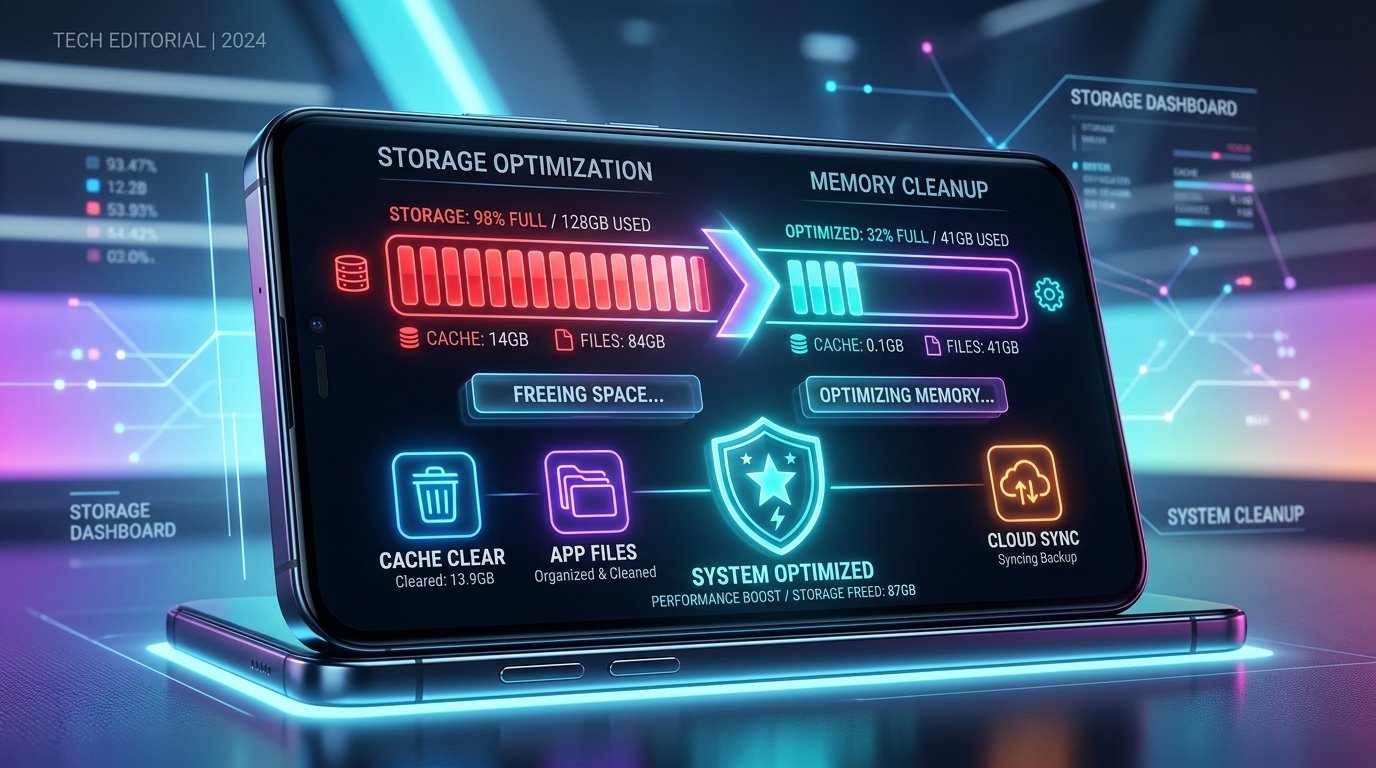
Running out of internal storage on an Android smartphone is one of the most frustrating experiences mobile users encounter. When internal memory drops below 10%, your device begins slowing down, app installations fail with cryptic package manager errors, camera apps refuse to record video, and system animations start stuttering. The default reaction for many users is to panic and start deleting essential games, work applications, or cherished memories.
Fortunately, you almost never need to uninstall your favorite applications to reclaim substantial storage. On modern smartphones—whether you are using Samsung One UI, Google Pixel Android, Xiaomi MIUI/HyperOS, OnePlus OxygenOS, or Motorola—most occupied gigabytes are consumed not by the application binaries themselves, but by accumulating cached assets, hidden messaging media backups, temporary web resources, forgotten offline streaming downloads, and unemptied recycle bins.
In this comprehensive, step-by-step troubleshooting guide, we walk you through 10 proven, risk-free methods on how to free up storage on android without deleting apps or losing personal accounts anywhere from 5GB to over 30GB of internal storage.
Understanding How Android Internal Storage Gets Consumed
Before executing cleanup steps, it is critical to understand how the Android operating system partitions and categorizes internal flash storage. When you navigate to Settings > Storage (or Device Care > Storage on Samsung devices), Android analyzes your storage drive into distinct partitions:
- System Files & OS Partitions: The core Android operating system, vendor firmware, security partitions, and baseline preloaded drivers. This partition typically takes between 12GB and 25GB depending on manufacturer skins.
- App Binaries: The actual compiled application files (APK base and split packages). Surprisingly, most standard apps only consume between 50MB and 200MB in executable code.
- App Data & User Databases: Your active login tokens, database records, saved preferences, offline game levels, and local profile states.
- App Cache: Temporary files such as image thumbnails, streaming buffers, preloaded web pages, and CDN assets designed to make apps open faster. This is the single largest source of reclaimable space.
- User Media: High-resolution photos, 4K camera recordings, downloaded songs, PDF documents, and shared WhatsApp media clips.
- “Other” or “System” Clutter: Temporary unpack archives, crash log dumps, orphaned database shards, and thumbnails unindexed by the primary media scanner.
By targeting accumulated cache, redundant downloads, and messaging caches rather than the applications themselves, you can completely restore free storage while preserving all your installed tools and games intact.
Storage Culprits & Cleanup Matrix
The table below summarizes the primary areas where Android storage silently leaks, the typical amount of space you can recover, and how safe the cleaning process is for your personal data:
| Storage Category | Typical Reclaimable Space | Personal Data Risk | Target Frequency |
|---|---|---|---|
| Social Media App Cache (TikTok, IG, Chrome) | 4 GB – 15 GB | Zero risk (Preserves logins) | Every 2–4 weeks |
| WhatsApp & Telegram Shared Media | 5 GB – 25 GB | Zero risk if using in-app manager | Monthly |
| Gallery & Photos Recycle Bins | 2 GB – 10 GB | Zero risk (Only discarded items) | Bi-weekly |
| Leftover APK Files & Download Directory | 1 GB – 6 GB | Zero risk (Installers already run) | Monthly |
| Offline Media Downloads (YouTube, Spotify) | 3 GB – 12 GB | Zero risk (Re-downloadable anytime) | As needed |
| Android 14+ App Archiving | 3 GB – 8 GB | Zero risk (Retains data & icons) | Automated |
With this roadmap in mind, let us examine each optimization method in exact detail.
Method 1: Clear Cached Data Across Heavy Apps (The Safest Win)
App cache represents temporary assets downloaded from web servers to accelerate browsing and rendering speed. For example, every time you scroll through TikTok, Instagram, Facebook, Reddit, or Chrome, hundreds of video thumbnails, avatar icons, and scripts are cached directly on your phone’s storage drive. Over several months, a single app like TikTok or Chrome can balloon from 150MB to over 10GB in pure cache.
Crucial Distinction: Clear Cache vs. Clear Data
Many users accidentally press “Clear Data” (or “Clear Storage”) instead of “Clear Cache”. Understanding the difference between these two buttons is fundamental to keeping your account logins safe:
| Feature | Clear Cache | Clear Data / Storage |
|---|---|---|
| What It Deletes | Temporary web files, cached thumbnails, audio snippets | Account credentials, offline databases, chat history, saved game files |
| Account Impact | You stay logged in; settings remain untouched | Resets app to factory fresh state; you must log back in |
| Data Safety | 100% Safe for everyday cleaning | Destructive (Requires backup or re-authentication) |
| Reclaim Potential | Immediate 5GB – 20GB across heavy apps | Maximum space recovery at the cost of resets |
Step-by-Step Instructions to Clear App Cache
Follow these steps on any modern Android version to safely purge cache without losing accounts:
- Open your phone’s Settings app.
- Select Apps (or App Management / Installed Apps depending on your device).
- Tap See all apps and sort the list by Size to immediately reveal the biggest storage hogs.
- Select the top storage consumer (frequently TikTok, Chrome, Instagram, YouTube, or Facebook).
- Tap Storage & cache.
- Tap the Clear Cache button (represented by a broom icon or trash icon). Do not tap Clear Storage / Clear Data unless you explicitly want to log out and reset the app.
- Repeat this process for your top 5 largest applications.
Targeting just Chrome, TikTok, Instagram, and YouTube typically frees between 6GB and 12GB of space in under two minutes.
Method 2: Clean Hidden WhatsApp & Telegram Media Bloat
Instant messaging platforms are notoriously the biggest hidden storage consumers on modern smartphones. Whenever friends, family, or work group chats send video memes, high-resolution photographs, voice notes, and PDF spreadsheets, Android silently saves these files to your local storage. Worse yet, WhatsApp also keeps a copy of every video or photo you send in an obscured “Sent” folder.
Using WhatsApp’s Native Storage Management Utility
Rather than manually digging through obscure file manager folders, WhatsApp features an integrated storage manager that highlights large files and forwarded spam:
- Open WhatsApp and tap the three-dot menu icon in the upper right corner.
- Select Settings > Storage and data > Manage storage.
- At the top of the screen, examine the Larger than 5 MB category. This highlights heavy video clips and attachments across all chats.
- Tap into the section, review the clips, and select Select all > Delete for unwanted videos.
- Next, inspect the Forwarded many times category to delete viral memes and duplicate videos with one tap.
- Scroll down to inspect individual chat threads sorted by size. Tap into heavy group chats and selectively purge large videos while keeping your important text conversation history intact.
Optimizing Telegram Cache & Auto-Delete Limits
Unlike WhatsApp, Telegram operates primarily in the cloud, but it aggressively caches channels and group media on your device until your disk is full. To prevent Telegram from choking your phone:
- Open Telegram > Settings > Data and Storage > Storage Usage.
- Adjust the Keep Media slider from “Forever” down to 3 days or 1 week. Any media older than this period is automatically cleared from local storage while remaining safely downloadable from Telegram’s cloud whenever you revisit the chat.
- Tap Clear Telegram Cache to immediately wipe gigabytes of preloaded videos and stickers.
If you frequently migrate data between devices or platforms, our dedicated guide on how to transfer WhatsApp chats between Android and iPhone provides additional step-by-step optimization routines for messaging databases.
Method 3: Empty Hidden Trash and Recycle Bins
A common misconception among Android users is that tapping “Delete” on a photograph, video, or document immediately frees up storage. On modern versions of Android, deleted media is moved into temporary holding bins—frequently called the Trash or Recycle Bin—where files remain for 30 to 60 days before permanent deletion.
If you recently recorded multiple 4K videos or deleted a dozen blurry photos, those files are still occupying full storage capacity on your drive. You must manually empty these bins to reclaim the space immediately:
- Google Photos Trash: Open the Google Photos app, tap Library > Trash, tap the three-dot menu icon in the top right, and choose Empty Trash.
- Samsung Gallery Recycle Bin: Open Samsung Gallery, tap the hamburger menu icon (three lines) in the bottom right, select Recycle bin, tap Empty, and confirm deletion.
- Files by Google Trash: Open Files by Google, tap the left side hamburger menu, tap Trash, choose All items, and tap Delete.
- Xiaomi MIUI / HyperOS Trash: Open the MIUI Gallery, tap Albums, scroll to the bottom to find Trash bin, and tap Clear all.
Manually purging these holding bins often yields an instantaneous recovery of 3GB to 15GB of disk space.
Method 4: Purge Leftover APK Packages and Download Clutter
If you frequently download and sideload Android utilities, games, or APK modifications, your device’s /Download directory is likely congested with obsolete installer packages. An APK (Android Package) file is an installer archive; once an app is successfully installed, Android extracts the necessary code into system partitions. The original .apk file sitting in your download directory is redundant dead weight.
If an APK file was corrupted during download, it can also cause installation failures. Refer to our detailed troubleshooting resource on how to fix “App Not Installed” error on Android for resolving package conflicts.
How to Safely Clear Redundant APK Installers
- Open your default file manager (such as Files by Google or Samsung My Files).
- Tap the Installation files (APKs) or Downloads category.
- Review the list: if an application is already installed and working, its corresponding
.apkor.xapkinstaller file can be safely deleted. - Select all old installation files and tap Delete. Remember to empty the file manager’s trash bin afterward.
Large 3D games and productivity suites often have APK installers ranging from 500MB to 2GB each; deleting three or four old installers can instantly free up significant gigabytes.
Method 5: Remove Forgotten Offline Downloads in Streaming Apps
Streaming platforms make it effortless to download content for offline viewing on flights, commutes, or areas with poor cellular reception. However, users frequently forget that downloaded playlists, podcast episodes, and 1080p movie seasons remain permanently stored on the device until manually removed.
- YouTube & YouTube Music: Open the app, navigate to your Library > Downloads, tap the three-dot settings icon next to finished videos, and tap Delete from downloads. If you have YouTube Premium, verify your download resolution settings under Settings > Background & downloads > Download quality (selecting Medium 360p or 720p instead of 1080p saves massive storage).
- Spotify: Open Spotify, tap your profile icon > Settings > Storage, and examine the storage breakdown. You can tap Remove all downloads to instantly purge cached offline audio without deleting your playlists or saved songs from your account.
- Netflix / Disney+ / Amazon Prime Video: Open the respective streaming app, navigate to the Downloads tab, tap the edit icon, and remove completed seasons or movies.
- Google Maps Offline Areas: Open Google Maps, tap your profile avatar > Offline maps, inspect stored regional maps, and delete obsolete areas that you no longer travel to. Each offline city map consumes between 200MB and 1.5GB.
Auditing offline media across your media suite regularly returns 5GB to 15GB of space.
Method 6: Leverage Android’s Native App Archiving Feature (Android 14+)
Starting with Android 14 and Google Play Core updates, Google introduced a revolutionary feature called App Archiving. This feature solves the exact problem of wanting to free up storage without losing applications or personal progress.
When an app is archived, Android uninstalls approximately 60% of the app’s bloated binary executable code, but leaves all of your personal user data, configuration files, and the app icon on your home screen untouched. The app icon displays a subtle cloud symbol over it. The moment you need to use the app again, tapping the icon seamlessly re-downloads the missing binary code from the Google Play Store, immediately restoring your app exactly where you left off without requiring you to re-login.
How to Enable Auto-Archiving in Google Play Store
- Open the Google Play Store app on your device.
- Tap your Profile picture in the top right corner and choose Settings.
- Expand the General category.
- Locate the toggle named Automatically archive apps and switch it to ON.
Once enabled, whenever your smartphone runs low on internal memory, Android will automatically archive rarely used applications in the background, freeing up multiple gigabytes seamlessly without disrupting your workflows.
Method 7: Analyze and Clean the Mysterious “Other” or “System” Storage
One of the most frequent complaints on Android support forums is the ballooning size of the “Other” or “System” category in storage settings, sometimes consuming upwards of 30GB to 50GB. Users are often confused because Android does not allow you to simply tap “Other” and delete it.
What Actually Lives Inside “Other” Storage?
- App Data from Third-Party Launchers and Sideloaded Apps: Files stored in app-specific sandboxes that the default storage scanner cannot categorize as photos, audio, or videos.
- Hidden Thumbnail Databases: The Android media server creates hidden
.thumbnailsindex files containing previews of every photograph ever rendered on your screen. Over years of use, this folder can grow to 10GB or more. - System Crash Dumps & Kernel Logs: Diagnostic files generated during OS errors that were never flushed.
- Voice Recorder Drafts & Download Shards: Incomplete download chunks from torrent clients, podcast apps, or web browsers.
How to Safely Shrink “Other” Storage
- Install Files by Google: Open the app and navigate to the Clean tab. The app uses machine learning to identify hidden app clutter, duplicate images, and large junk files residing in obscure directories.
- Purge the Hidden
.thumbnailsFolder: Using a file manager with “Show hidden files” enabled, navigate toInternal Storage > DCIM > .thumbnails. You can safely delete all files inside this folder. Android will recreate thumbnails for current photos on demand, clearing years of dead index files. - Clear Google Play Services Storage Cache: Navigate to Settings > Apps > Google Play Services > Storage > Clear Cache. This flushes temporary sync buffers without affecting your Google account.
- Reboot into Recovery to Wipe Cache Partition: On Samsung and select Android devices, power down the phone, connect it via USB to a computer, and hold Volume Up + Power until the recovery menu appears. Select Wipe cache partition (using volume keys to navigate and power to select) and confirm. This clears system-level OS cache and temporary installation shards without touching any user data.
Method 8: Offload High-Resolution Media to Cloud Storage
Modern smartphone camera sensors shoot photographs at 50MP to 200MP and capture 4K video at 60 frames per second. Just five minutes of 4K video recording consumes roughly 2GB of internal storage. If you retain months of raw camera media directly on your internal drive, your storage will quickly reach capacity.
Using Google Photos “Free Up Space” Function
Google Photos has a dedicated automation feature engineered specifically to preserve your memories in cloud storage while clearing physical device memory:
- Open Google Photos and verify that your backup sync is active and up to date (indicated by a green checkmark on your profile icon).
- Tap your Profile avatar in the upper right corner.
- Tap Free up space (the app will display the exact amount of space ready to be liberated, e.g., “Free up 8.4 GB”).
- Confirm by tapping Free up.
This command deletes the local device copies of all photos and videos that have already been backed up to your Google Cloud account. The photos remain accessible in the Google Photos app and can be downloaded back to local storage anytime.
Method 9: Optimize MicroSD Card Storage (For Supported Devices)
If your Android smartphone features an expandable MicroSD card slot, you can offload substantial data strain from your internal flash drive to the external memory card. There are two effective strategies for maximizing SD card storage:
- Set Camera Storage Location to SD Card: Open your default Camera app, tap Settings (gear icon), scroll to Storage location, and switch it from Internal Storage to SD card. All future 4K videos, burst shots, and photos will save directly to external memory.
- Move Large Downloads and Document Libraries: Using your file manager, move your
/Download,/Music, and/Moviesfolders to the MicroSD card. - Transfer Sideloaded Media via Quick Share: When sharing large files between family devices or PCs, use built-in tools rather than duplicate storage transfers. See our complete walkthrough on Quick Share on Android: complete guide and setup for seamless file routing.
Important Security Warning: Avoid Predatory “RAM Booster” & “Cleaner” Apps
When searching the Google Play Store for storage solutions, you will encounter hundreds of utilities promising “1-Click Speed Booster”, “Super RAM Cleaner”, or “Battery Cool Down”. Our editorial team strongly advises against installing these third-party cleaner utilities:
- Aggressive Adware & Intrusive Pop-ups: The majority of third-party cleaner apps are designed purely to bombard users with full-screen ads, lock screen promotions, and background tracking scripts.
- Counterproductive RAM Killing: Many cleaner apps force-kill background tasks to show artificial memory gains. In Android’s Linux architecture, free RAM is wasted RAM; when background processes are aggressively terminated, Android must immediately reload them into memory, causing battery drain and system lag.
- Excessive Permissions: Many dubious cleaner tools request invasive permissions including accessibility hooks, call logs, and full media scanning privileges, posing severe privacy risks.
- Legitimate Native Alternatives: You do not need third-party cleaner apps. Android already includes superior, privacy-conscious utilities built-in: Files by Google (available for all Android devices) and Samsung Device Care (for Galaxy phones).
Proactive Habits to Keep Android Storage Clean Long-Term
To avoid running out of storage in the future, adopting these five proactive habits will keep your smartphone running smoothly year-round:
- Disable Auto-Download on WhatsApp: Navigate to WhatsApp Settings > Storage and data > Media auto-download. Set When using mobile data and When connected on Wi-Fi to No media. This prevents group chat videos from automatically cluttering your phone.
- Schedule Bi-Weekly Recycle Bin Purges: Make it a habit to empty your Google Photos and Gallery trash folders every two weeks.
- Stream Instead of Storing: Whenever you have access to stable Wi-Fi or unlimited data, stream audio and video content instead of downloading extensive offline catalogs.
- Periodically Audit Download Folders: Delete obsolete PDF tickets, installation files, and duplicate email attachments at the end of each month.
- Keep at Least 15% Internal Storage Free: Solid-state flash memory relies on Wear Leveling algorithms to distribute write cycles and maintain read speeds. Keeping at least 15% free headroom prevents phone performance degradation and premature SSD wear.
Frequently Asked Questions (FAQ)
Does clearing app cache delete my photos, messages, or login passwords?
No. Clearing an application’s cache deletes only temporary internet files, cached video thumbnails, and local image buffers. Your account logins, passwords, settings, and personal data remain intact. In contrast, selecting “Clear Storage” or “Clear Data” resets the application back to fresh install status and will require logging in again.
Why is my “System” or “Other” storage taking up 20GB to 30GB?
The “System” category includes the Android operating system, vendor firmware, security partitions, and baseline preloaded drivers. On modern phones with dual A/B seamless update partitions, 15GB to 22GB is standard. If “Other” exceeds 30GB, it typically indicates hidden app cache, unindexed media from sideloaded apps, or a bloated .thumbnails folder that can be cleaned using the methods outlined above.
Is it safe to delete the hidden .thumbnails folder on Android?
Yes, it is completely safe. The .thumbnails folder contains image caches generated by the Android media scanner. Deleting this folder will not delete your actual photographs or videos. Android will automatically regenerate fresh, smaller thumbnail caches for your current pictures when you open your gallery.
Can I physically expand my Android phone’s internal storage?
Physical internal flash storage (UFS memory chips soldered directly onto the device motherboard) cannot be upgraded after purchase. However, if your phone includes a MicroSD card slot, you can expand storage externally. For phones without SD card slots, offloading high-resolution media to cloud services (Google Drive, OneDrive, Google Photos) or using a compact USB-C OTG flash drive provides immediate storage relief.
Why does my phone say storage is full right after deleting files?
When you delete photos or files on Android, they are moved into the Gallery Trash or Files Trash holding folder for 30 days rather than being permanently erased. You must open your Gallery or File Manager, enter the Trash/Recycle Bin, and select “Empty Trash” to immediately reclaim the physical storage space on your drive.
Final Thoughts
Running out of smartphone storage does not mean you have to sacrifice your favorite applications or compromise daily productivity. By understanding the distinction between app cache and app data, mastering WhatsApp’s built-in storage manager, emptying hidden gallery recycle bins, and enabling Android 14’s native app archiving, you can easily reclaim 10GB to 30GB of space in just a few minutes.
Avoid predatory third-party cleaner apps, stick to trusted tools like Files by Google, and adopt proactive monthly hygiene habits to keep your Android device running fast, responsive, and clutter-free.