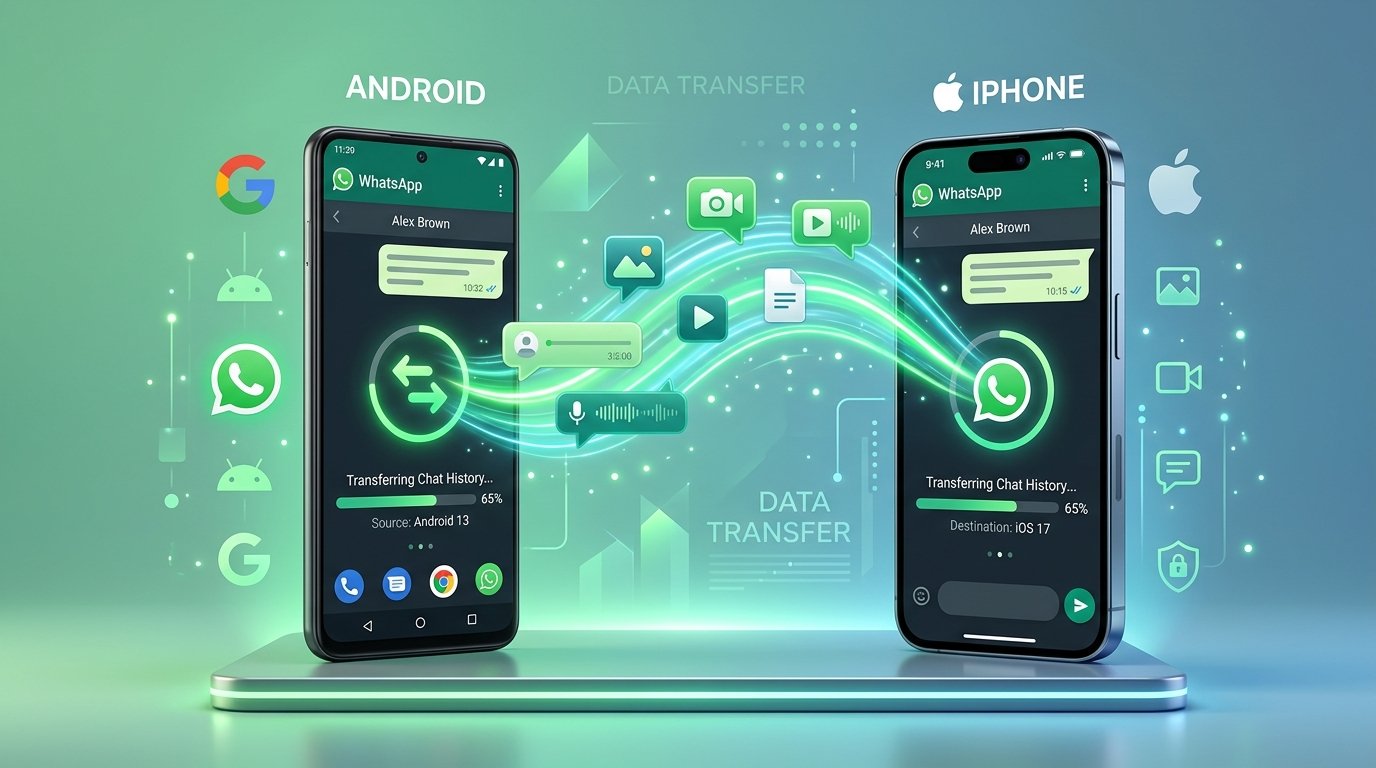
Switching between smartphone ecosystems—from an Android device to an Apple iPhone or vice versa—has become smoother over the years, with contacts, photos, and calendar events transferring almost automatically. However, for millions of daily messaging users, the single biggest concern remains: how to transfer WhatsApp chats across platforms without losing years of conversations, voice notes, and media.
Because Android and iOS rely on fundamentally incompatible cloud backup systems (Google Drive on Android and Apple iCloud on iPhone), you cannot simply sign in on a new device and tap “Restore from Cloud.” In the past, users had to resort to expensive, unreliable third-party desktop utilities. Fortunately, WhatsApp, Apple, and Google now provide completely free, official direct migration methods.
This comprehensive step-by-step guide walks you through transferring your entire WhatsApp chat history between Android and iPhone for free, safely preserving your messages, photos, videos, and group discussions.
Comparison Table: WhatsApp Transfer Methods at a Glance
Select the migration method best suited to your devices and operating systems:
| Transfer Direction | Official Tool Used | Cable Required? | Requires Factory Reset? | Estimated Transfer Time |
|---|---|---|---|---|
| Android to iPhone | Apple Move to iOS app | No (Direct Wi-Fi) | Yes (iPhone must be in setup) | 15 – 35 minutes |
| iPhone to Android | WhatsApp Cable Migration | Yes (USB-C to Lightning / Type-C) | Yes (Android initial setup) | 15 – 30 minutes |
| Android to Android | WhatsApp Chat Transfer | No (Local Wi-Fi QR) | No (Direct within app) | 5 – 15 minutes |
| iPhone to iPhone | WhatsApp Chat Transfer | No (Local Wi-Fi QR) | No (Direct within app) | 5 – 15 minutes |
Why Cross-Platform WhatsApp Transfer Was Historically Difficult
Understanding why cross-platform transfer requires a direct device-to-device bridge explains why standard cloud restores do not work:
- Incompatible Database Formats: Android stores WhatsApp chat archives in SQLite databases backed up to Google Drive using Android-specific encryption envelopes. iPhone stores backups on Apple iCloud using CoreData formatting. Neither operating system can natively read the other’s cloud files.
- End-to-End Encryption Security: WhatsApp messages are protected with end-to-end encryption. To transfer them across platforms without compromising privacy, the transfer must occur directly between the two physical devices where private keys can be securely authenticated, decrypted, and re-encrypted into the new operating system’s secure enclave.
Essential Pre-Transfer Checklist and Requirements
Before initiating the transfer, ensure both devices meet the official technical requirements to prevent migration errors halfway through:
- Operating System Versions: Your Android device must run Android 5.0 (Lollipop) or newer. Your iPhone must run iOS 15.5 or newer.
- WhatsApp App Versions: Update WhatsApp to the latest version on both devices via Google Play Store and Apple App Store.
- Same Mobile Number: You must register WhatsApp on your new device using the exact same mobile telephone number as your old device.
- Power and Battery Connection: Keep both phones connected to wall chargers throughout the migration; transferring multi-gigabyte media archives consumes significant battery power.
- Wi-Fi Network: Both phones must be connected to the same private Wi-Fi network (or the Android phone connected to the iPhone’s setup hotspot).
- Cable Requirement (iPhone to Android): Transferring from iPhone to Android requires a USB-C to Lightning cable (or USB-C to USB-C for iPhone 15 and newer).
Method 1: Transfer WhatsApp from Android to iPhone (Using “Move to iOS”)
The official, free method for migrating from an Android smartphone to an iPhone uses Apple’s official Move to iOS application. Note that your iPhone must either be brand new out of the box or factory reset to access the initial setup screen.
Step 1: Install “Move to iOS” on Android and Create a Fresh Backup
On your Android phone, open the Google Play Store, search for Move to iOS (developed by Apple), and install it. Open WhatsApp on Android, navigate to Settings > Chats > Chat backup, and tap Back Up to ensure all recent conversations are saved locally to device storage.
Step 2: Begin Setup on Your New iPhone
Power on your new iPhone and follow the on-screen initial setup prompts. Connect to your Wi-Fi network and proceed until you reach the Apps & Data screen. Tap Move Data from Android. A unique 6-digit or 10-digit pairing code will appear on the iPhone screen.
Step 3: Pair Devices and Select WhatsApp Data
Open the Move to iOS app on your Android phone, accept the privacy terms, and enter the code displayed on the iPhone screen. When the Transfer Data screen appears on Android, scroll down and check WhatsApp.
A WhatsApp screen will automatically open on Android. Tap Start. WhatsApp will prepare your chat database and media files for export. Once preparation finishes, tap Next to return to the Move to iOS screen and tap Continue.
Step 4: Wait for the Wireless Transfer to Conclude
Keep both devices side-by-side without opening other apps until the progress bar reaches 100%. The transfer duration depends on the size of your chat history and media (usually 15 to 30 minutes for a 5 GB archive).
Step 5: Finalize WhatsApp Activation on iPhone
Once Move to iOS finishes, complete the remaining iPhone setup steps. Open the App Store on your iPhone, download the latest version of WhatsApp Messenger, and open it. Enter your phone number (the same number used on Android) and verify via SMS. When prompted with Move Chats from Android, tap Start and grant permissions. Your complete chat history will now be fully restored on your iPhone.
Method 2: Transfer WhatsApp from iPhone to Android (Using Cable and QR Code)
If you are switching from an iPhone to an Android device (such as a Samsung Galaxy, Google Pixel, or Xiaomi running Android 12+), WhatsApp provides an official direct cable transfer workflow:
Step 1: Connect Both Devices via Cable During Android Setup
Turn on your new or factory-reset Android smartphone and begin the initial setup. When prompted to copy apps and data from an old device, choose iPhone. Connect your iPhone to your Android phone using a compatible USB-C to Lightning or USB-C to USB-C cable.
Step 2: Scan the Migration QR Code on Your iPhone
Unlock your iPhone and tap Trust when prompted to trust the connected device. A QR code will display on the Android screen. Open the Camera app on your iPhone and scan the QR code, which opens WhatsApp’s migration utility. Alternatively, navigate to WhatsApp > Settings > Chats > Move Chats to Android.
Step 3: Begin Transfer and Finish Android Setup
Tap Start on your iPhone to begin data packaging. Keep both phones connected via the cable until the transfer process concludes. Once complete, disconnect the cable and finish setting up your Android home screen.
Step 4: Launch WhatsApp on Android and Decrypt Chats
Open WhatsApp on your new Android phone, verify your phone number via SMS, and tap Import when prompted. WhatsApp will decrypt your transferred chats, and all your conversations, photos, voice notes, and groups will appear intact.
Method 3: Direct Wireless Transfer Between Same Operating Systems
If you are simply moving from an old Android to a new Android, or an old iPhone to a new iPhone, you do not need cloud backups or cables at all. WhatsApp now features a built-in Chat Transfer tool that operates directly over local Wi-Fi:
- Ensure both phones have Wi-Fi and Location services enabled.
- On the old phone, open WhatsApp and go to Settings > Chats > Transfer Chats.
- Tap Start to generate a secure transfer QR code.
- On your new phone, install WhatsApp, verify the same phone number, and choose Transfer chat history from old phone.
- Use the new phone to scan the QR code displayed on the old phone screen.
- Keep both phones near each other until the local Wi-Fi transfer completes 100%.
Data Migration Checklist: What Transfers and What Stays Behind
Review this reference checklist to understand exactly how your WhatsApp data migrates during cross-platform transfers:
| Data Item | Transferred to New Phone? | Technical Notes |
|---|---|---|
| Personal 1-on-1 Chats | Yes | Full text messages and conversation timestamps preserved |
| Group Chats & Communities | Yes | Group memberships and admin roles transfer intact |
| Photos and Videos | Yes | High-resolution media transfers automatically |
| Voice Messages & Audio | Yes | All voice notes and audio clips are decrypted and moved |
| Documents and PDFs | Yes | Shared attachments and files are migrated |
| Starred Messages & Pins | Yes | Favorites and pinned conversations remain active |
| Call Logs (Audio / Video) | No | Historical call logs do not transfer across OS platforms |
| WhatsApp Payment History | No | Peer-to-peer payment records stay on old device for security |
| Live Status Updates | No | Status updates expire normally; new posts sync automatically |
Troubleshooting Common WhatsApp Transfer Problems
If your cross-platform transfer encounters issues or freezes, use these verified troubleshooting solutions:
Transfer Stuck at 0% or Pauses Halfway
A frozen progress bar usually results from device sleep settings or unstable Wi-Fi. Ensure both phones are plugged into chargers, disable screen timeout, and keep both apps in the foreground. On Android, turn off aggressive battery savers for both Move to iOS and WhatsApp.
“Phone Number Does Not Match” Warning
You cannot use this tool to transfer chats between two different phone numbers. If you changed your mobile carrier number, perform WhatsApp’s Change Number procedure on your old device first (Settings > Account > Change Number) before starting the cross-platform migration.
Move to iOS Wi-Fi Disconnects
On Android, features like “Smart Network Switch” or “Adaptive Wi-Fi” cause the phone to drop the iPhone’s temporary setup Wi-Fi if it detects no internet. Go to Android Wi-Fi settings, turn off Smart Network Switch, and forget saved home Wi-Fi networks during the migration.
Frequently Asked Questions
Can I transfer WhatsApp from Android to iPhone without resetting my iPhone?
The official Apple Move to iOS method requires the iPhone to be on the initial “Hello” setup screen, which means an already-configured iPhone must be reset. If you cannot reset your iPhone, you can keep your old Android phone as an archive or use WhatsApp Web until a future software update enables direct in-app cross-platform transfers without setup resets.
Do I need to pay for third-party transfer software?
No. You do not need to pay for expensive third-party PC applications. WhatsApp, Apple, and Google provide official, free direct transfer utilities that securely migrate your messages without subscription fees.
Are my WhatsApp chats encrypted during the transfer?
Yes. Data transferred between devices is encrypted in transit and neither Apple nor Google can read your personal messages or media files.
Will my old phone lose all its WhatsApp messages immediately?
Your old phone will be logged out of WhatsApp once you verify your phone number on the new phone, but your data is not instantly deleted from the old device until you uninstall the app or clear its data.
Can I restore an Android Google Drive backup directly onto an iPhone?
No. The iOS version of WhatsApp can only read backups stored in Apple iCloud. To bring your Google Drive chats to iOS, you must use the direct device-to-device migration outlined in Method 1.
Final Thoughts
Switching between Android and iPhone no longer means sacrificing your treasured chat history. By preparing both devices properly, verifying your phone number, and using the official Move to iOS or cable migration workflows, you can transfer years of messages, photos, and voice notes seamlessly and completely free of charge.
Always maintain a fresh backup before beginning any device migration, keep both smartphones charged, and enjoy your new mobile setup with all your conversations ready from day one.


One Comment on “How to Transfer WhatsApp Chats Between Android and iPhone for Free”