What Is Quick Share on Android?
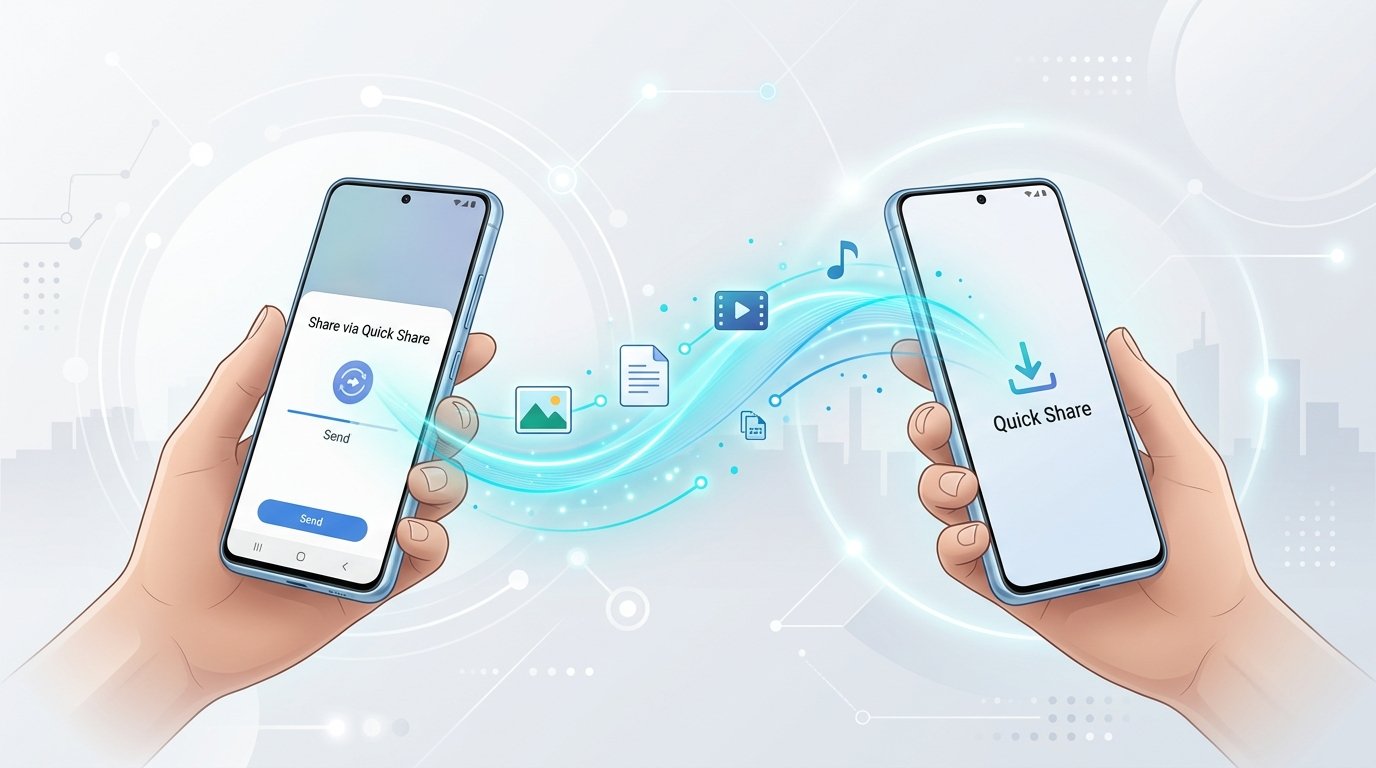
Quick Share is the default peer-to-peer wireless file-sharing protocol for Android. Originally introduced by Samsung for Galaxy devices in 2020, and developed separately by Google as Nearby Share, the two tech giants partnered to merge their systems into a single brand named Quick Share. This unification means that Samsung Galaxy devices, Google Pixel phones, OnePlus, Xiaomi, Motorola, and all modern Android devices running Google Play Services share a single, interoperable transfer ecosystem.
Unlike cloud storage uploads through Google Drive or messaging app attachments through WhatsApp, Quick Share establishes a direct local connection between two hardware devices. Your files never travel across external web servers or company databases. Transfers happen entirely offline at speeds reaching up to tens of megabytes per second, making it ideal for sharing uncompressed camera footage and large project archives.
How Quick Share Works (Under the Hood)
Quick Share operates by combining multiple wireless radio protocols automatically behind the scenes. You do not need to manually pair Bluetooth devices or scan local network IP addresses because the operating system chooses the optimal transmission medium dynamically.
Bluetooth Low Energy for Device Discovery
When you trigger Quick Share on your Android device, the system uses Bluetooth Low Energy (BLE) to broadcast small, encrypted beacon packets into the immediate room. Nearby devices with Quick Share enabled detect these beacons instantly, allowing your phone to show available receiver avatars within seconds while consuming minimal battery power.
Wi-Fi Direct and WebRTC for High-Speed Data Transfer
Once you select a recipient and they accept your transfer request, Quick Share negotiates a direct peer-to-peer Wi-Fi connection (Wi-Fi Direct) or high-speed local WebRTC channel. Even if neither phone is connected to an active Wi-Fi router or home internet, the sending phone creates a localized Wi-Fi hotspot that the receiving phone joins automatically. This allows multi-gigabyte files to move at full Wi-Fi speeds rather than sluggish Bluetooth transfer rates.
End-to-End Encryption
Security is baked directly into the Quick Share protocol. The payload sent across the localized Wi-Fi link is protected using industry-standard peer encryption keys. Third-party devices eavesdropping on wireless traffic cannot intercept, view, or decrypt your transferred data.
Supported Devices and System Requirements
One of the greatest advantages of Quick Share is broad compatibility across hardware manufacturers and form factors:
- Android Smartphones and Tablets: Any device running Android 6.0 (Marshmallow) or higher equipped with Google Play Services.
- Samsung Galaxy Hardware: Native integration across One UI on all modern Galaxy phones and tablets.
- Windows Personal Computers: Any 64-bit Windows 10 or Windows 11 PC equipped with Bluetooth and Wi-Fi capabilities running the official Quick Share for Windows desktop client.
- ChromeOS Laptops: Chromebooks running ChromeOS version 91 or later have Quick Share built directly into the system settings.
How to Enable and Set Up Quick Share on Android
Setting up Quick Share takes less than a minute. Follow these steps to ensure your device is discoverable and ready for transfers:
- Swipe down twice from the top of your screen to open the Quick Settings panel.
- Locate the Quick Share icon (if you do not see it, tap the Edit pencil icon to add it to your active tiles).
- Tap and hold the Quick Share tile to open its full configuration menu.
- Toggle Quick Share to the On position.
- Choose your preferred Device Name so friends and colleagues can identify your phone easily.
- Select your Device Visibility setting according to your personal privacy preference.
How to Send Files Using Quick Share
Sending content with Quick Share works seamlessly from any app on your phone, including Google Photos, Files by Google, Chrome, and your gallery:
- Open your gallery, file manager, or document viewer and select the items you wish to transfer.
- Tap the standard Android Share button (the three connected dots icon).
- Select Quick Share from the top row of share options.
- Your device will begin scanning nearby hardware. Wait for the recipient’s device name or profile avatar to appear on your screen.
- Tap on the recipient’s avatar to initiate the transfer.
- Keep both devices in proximity until the circular progress indicator completes.
How to Receive Files Using Quick Share
Receiving files on an Android device is protected with clear confirmation dialogs so you never receive unwanted files accidentally:
- Ensure your phone screen is unlocked and Bluetooth/Wi-Fi are enabled.
- When a nearby sender selects your device, a pop-up alert will appear displaying the sender’s device name and a preview of the incoming file.
- Tap Accept to permit the transfer.
- Once the download finishes, tap Open to view the file or find it organized in your device’s Downloads directory.
How to Transfer Files Between Android and Windows PC
Moving files between your phone and your Windows computer traditionally required plugging in a USB cable or sending emails to yourself. With Quick Share for Windows, you can achieve wireless AirDrop-like transfers on PC:
- Download and install the official Quick Share for Windows application from Android.com.
- Launch the app and sign in with the same Google Account you use on your Android phone.
- Configure your PC’s visibility to Your Devices for frictionless transfers that accept files automatically without requiring manual approval prompts each time.
- On your phone, select any photo or document, tap Quick Share, and select your computer.
- Your files will instantly transfer straight to your PC’s Downloads folder at blazing Wi-Fi speeds.
Quick Share Privacy and Visibility Settings Explained
To prevent unwanted transfer requests in public transit, airports, or busy cafes, Quick Share provides three distinct privacy tiers:
Your Devices Mode
This is the most secure and convenient mode for individual users. Your phone is visible only to other hardware logged into the exact same Google Account (such as your tablet, Chromebook, or personal desktop). Incoming transfers from your own devices complete automatically without requiring you to tap “Accept” on the receiver.
Contacts Only Mode
Under this mode, only people saved in your Google Contacts who also have your Google Account email registered can discover your device. Strangers in public spaces cannot see your device name or attempt to send you files.
Everyone (10 Minutes Temporary Mode)
When you need to receive a document from a new colleague, client, or stranger whose contact information you haven’t saved, you can set visibility to Everyone. Crucially, modern Quick Share includes an automatic 10-minute timer that switches your visibility back to Contacts or Your Devices after 10 minutes to protect you against public spam.
Troubleshooting Common Quick Share Issues
If you experience difficulty connecting two devices, these proven solutions resolve over 95% of common Quick Share transfer errors:
Target Device Not Showing Up
If the sender’s phone cannot discover the receiver, verify that the receiving device has its screen unlocked. By design, Android suppresses Quick Share discovery when the screen is asleep to preserve battery and maintain privacy. Ensure Bluetooth, Wi-Fi, and Location services are enabled on both devices.
Transfer Stuck or Slow Speeds
If a file begins sending but stalls halfway through, an active VPN or third-party firewall on either device may be blocking the local Wi-Fi Direct handshake. Temporarily disable your VPN application while sharing files. Furthermore, ensure both devices remain within 10 to 15 feet of each other during the entire transfer process.
Wi-Fi Direct and Hotspot Conflicts
If either phone has its Mobile Hotspot feature running to share internet with other devices, Android may prevent Wi-Fi Direct from establishing a secondary ad-hoc network. Turn off Mobile Hotspot temporarily before initiating Quick Share.
Quick Share vs Third-Party File Sharing Apps
Many Android users still maintain legacy third-party sharing apps like SHAREit or Xender on their devices out of habit. Here is why switching permanently to native Quick Share is strongly recommended:
- Zero Intrusive Advertisements: Quick Share is a native system utility with no banner ads, video popups, or notification spam.
- No Dangerous Background Permissions: Third-party apps often request excessive device access, including persistent location tracking and contact harvesting. Quick Share uses sandboxed system privileges managed by Google Play Services.
- No Compression or Resizing: Quick Share preserves exact original bitrates, RAW image profiles, and metadata intact.
- System-Wide Share Sheet Integration: You can trigger a transfer directly from any app without opening a dedicated launcher or scanning complex QR codes.
Official Download and Updates
Quick Share functionality is delivered and continuously maintained through Google Play Services on modern Android devices. Ensure your system services remain updated to benefit from the latest speed optimizations and security patches:
Frequently Asked Questions (FAQ)
Does Quick Share require an active internet connection?
No. Quick Share transfers files entirely peer-to-peer using localized Bluetooth and direct Wi-Fi connections. You can share large videos, photos, and documents in remote areas, on flights, or when mobile data is disabled.
Can I use Quick Share between Android and iPhone?
Quick Share is designed for Android, ChromeOS, and Windows systems. It does not communicate natively with Apple’s proprietary AirDrop protocol on iOS or macOS. For sharing files with iPhone users, cloud links or open-source cross-platform tools like LocalSend are the recommended alternative.
Is Quick Share the same as Samsung Quick Share?
Yes. In early 2024, Google and Samsung officially merged Google Nearby Share and Samsung Quick Share into a single unified service. Whether you use a Galaxy device, a Pixel, or a Motorola phone, all devices now share the same Quick Share network.
What is the file size limit for Quick Share?
There is no practical file size limit enforced by Quick Share. You can transfer massive files, including 4K video recordings and multi-gigabyte archives, provided both the sender and recipient devices have sufficient internal storage available.
Is Quick Share safe from stranger requests in public places?
Yes. By keeping your visibility set to “Contacts” or “Your Devices,” strangers cannot discover your phone. Even if you temporarily set visibility to “Everyone,” no file can be downloaded onto your device without your explicit manual approval on the confirmation screen.
Final Thoughts
The unification of Nearby Share and Quick Share marks a major milestone for the Android ecosystem. By combining seamless Bluetooth discovery with the raw speed of localized Wi-Fi Direct, Android users now enjoy a fast, reliable, and secure wireless file transfer experience that rivals and often surpasses alternative platforms. By maintaining proper visibility settings and keeping Google Play Services updated, you can move massive multimedia files and documents between all your devices effortlessly.