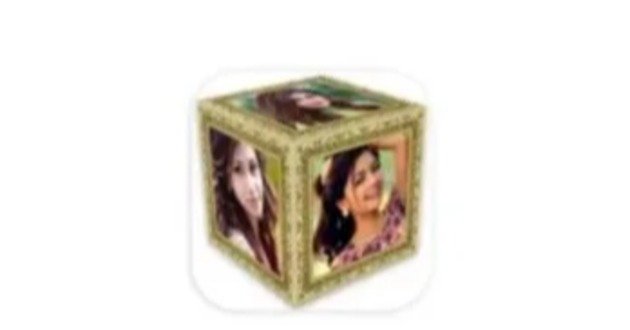
What Is 3D Photo Cube Wallpaper
3D Photo Cube Wallpaper is a live wallpaper that displays pictures on a three dimensional cube.
A traditional wallpaper normally uses a single image as the background. A 3D photo cube uses multiple images and presents them on different surfaces of a rotating cube.
Some applications allow up to six pictures because a standard cube has six sides. Other versions also provide additional shapes such as spheres, pyramids, cylinders, diamonds, and toruses.
The cube can then be placed on your phone’s home screen as a live wallpaper.
How 3D Photo Cube Wallpaper Works
- The basic process is straightforward.
- First, you select photos from your phone’s gallery.
- The application processes the selected images and places them on the cube surfaces.
You can then customize the cube’s appearance, including its size, position, background, and rotation.
After previewing the design, you set it as your live wallpaper.
The cube then appears and moves according to the settings you selected.
Some applications also support touch interaction, allowing you to change or control the cube’s movement by touching the screen. (Google Play)
Main Features of 3D Photo Cube Wallpaper
Personal Photo Selection: One of the main advantages is the ability to use your own photos. You can select pictures from your gallery and assign them to different sides of the cube. Some applications support between one and six images. This makes the wallpaper more personal than a standard background. You can use: Family photos. Friends’ pictures. Travel memories. Pet photos. Nature photography. Artwork. Personal designs. School or event pictures.
Rotating 3D Cube: The rotating cube creates the main visual effect. The selected photos move as the cube rotates, allowing different images to appear on the screen. You can usually adjust the rotation speed. Some applications also allow you to change the rotation direction or interaction settings.
Adjustable Cube Size: A good 3D wallpaper application allows you to change the cube’s size. You can make the cube larger if you want it to become the main focus of the home screen. You can also reduce its size if you prefer a more subtle appearance.
Cube Position: Position controls allow you to move the cube around the screen. You can place it in the center or move it toward another area of the display. This is useful because different smartphones have different screen sizes and launcher layouts.
Custom Backgrounds: Many 3D cube wallpaper applications provide background options. You may be able to select a simple color, image, pattern, or animated background depending on the application. Current 3D cube wallpaper applications advertise multiple background choices and customization options.
Photo Frames: Some applications provide frames around the photos or cube. Frames can change the visual appearance of the cube and make individual images stand out. The available frame styles depend on the application.
Photo Cropping: Photos from your gallery may have different aspect ratios. Cropping tools can help you adjust an image before placing it on the cube. This can prevent important parts of the photo from being cut off. Some 3D cube wallpaper applications specifically provide photo cropping before applying pictures.
Touch Interaction: Some applications allow users to interact with the cube through touch. You may be able to rotate the cube manually or change its movement by touching and swiping the screen. This creates a more interactive experience than a normal animated wallpaper.
Animation Effects: Some versions include additional animation effects. These can include stars, floating elements, background movement, and other visual effects. You can select effects according to your preferred style.
Multiple Cubes: Some advanced applications support multiple cubes or several 3D objects on the screen. This can create a more complex animated wallpaper. However, additional objects may require more processing power.
Different 3D Shapes: Newer applications are expanding beyond the traditional cube. For example, one current Android application provides cube, sphere, pyramid, cylinder, diamond, and torus shapes. It also supports multiple shapes arranged in grids. This gives users more choices when creating personalized wallpapers.
Benefits of 3D Photo Cube Wallpaper
Personalized Home Screen: The biggest benefit is personalization. Instead of using a standard wallpaper, you can display your own photos in an animated 3D design. This makes the phone’s home screen more distinctive.
Display Multiple Photos: A normal wallpaper generally focuses on one image. A photo cube can display several pictures simultaneously. A six sided cube can therefore provide space for up to six different images when the application supports all six sides.
Creative Photo Presentation: A 3D cube provides an alternative way to display photographs. It can be useful for people who enjoy photography, design, family memories, travel images, or creative phone customization.
Interactive Experience: Touch controls can make the wallpaper more engaging. Instead of simply watching an animation, you may be able to interact with the cube by touching or swiping.
Easy Customization: Most applications use simple controls. You select your photos, adjust the cube, choose effects, and set the result as your wallpaper. This means you do not need professional graphic design skills.
3D Photo Cube for Family Photos: Family pictures are one of the most suitable uses for a photo cube. You could place different family members on different sides of the cube. For example: Parents. Children. Siblings. Grandparents. Family events. Holiday memories. You can then use the finished cube as your animated home screen.
3D Photo Cube for Travel Pictures: Travelers can create a cube using photographs from different destinations. One side could show a mountain view. Another could show a city. Another could show a landmark. Another could display a beach. This creates a rotating collection of travel memories.
3D Photo Cube for Students: Students can use a photo cube to display educational images, motivational designs, class memories, or event photographs. For example, a student could create a cube featuring different school activities. It can also be used for personal creative projects.
3D Photo Cube for Photography: Photography enthusiasts can use the wallpaper to display selected photographs. Instead of choosing one image, you can create a small rotating portfolio. This can work particularly well with landscape photography, portraits, architecture, and abstract images.
How to Create a 3D Photo Cube Wallpaper
Step 1: Install a Suitable Application: Choose a reputable 3D Photo Cube live wallpaper application from a trusted app store. Check the application’s developer information, recent updates, ratings, reviews, and privacy information before installation.
Step 2: Open the Application
- Launch the application after installation.
- You should see options for creating or configuring the 3D wallpaper.
- The exact interface varies between applications.
Step 3: Select Your Photos: Open the gallery option. Choose the images you want to display. If the application supports six sides, you can select up to six pictures for the cube.
Step 4: Crop Your Photos
- Adjust the images if necessary.
- Crop important subjects into a suitable square format.
- Check the preview to make sure faces and important objects are positioned correctly.
Step 5: Select a Background: Choose a background that complements your photographs. You can select a simple background if you want the photos to remain the main focus.
Step 6: Adjust the Cube
- Change the cube’s size.
- Move its position.
- Adjust rotation speed.
- Choose the rotation direction if supported.
- Enable or disable touch interaction.
Step 7: Add Effects: You can add frames, animations, or other visual effects if your application provides them. Avoid adding too many effects if you want your photographs to remain clear.
Step 8: Preview the Wallpaper
- Preview the complete design.
- Check how the cube moves.
- Make sure the photos are correctly positioned.
- Adjust the settings if necessary.
Step 9: Set as Live Wallpaper: Select the option to set the design as a live wallpaper. Android will display the wallpaper selection interface. Choose the home screen or the available wallpaper destination according to your device. Some applications use the standard Android path through the Wallpaper and Live Wallpaper settings.
How to Customize the Cube
Customization is one of the most useful parts of a 3D photo cube application. You can experiment with:
- Cube size.
- Cube position.
- Rotation speed.
- Rotation direction.
- Background.
- Photo frames.
- Animation effects.
- Touch interaction.
- Photo selection.
- Number of cubes.
- Screen spacing.
Some newer applications also provide brightness, blur, vignette, grayscale, and image scaling controls.
3D Photo Cube and Battery Usage
Live wallpapers continuously render animations, so they can consume more system resources than static wallpapers. The actual battery effect depends on your phone, display, graphics hardware, refresh rate, application design, and animation settings. If battery usage becomes noticeable, reduce the animation speed or use a static wallpaper instead. Some newer applications specifically advertise battery optimization, but actual results can vary between devices.
3D Photo Cube and Phone Performance
Older smartphones may experience more noticeable performance effects when using animated 3D wallpapers. The cube requires graphics processing to render movement and effects. If you notice lag, try these adjustments:
- Reduce the number of cubes.
- Lower animation speed.
- Disable unnecessary effects.
- Use fewer background animations.
- Reduce the cube size.
- Close unnecessary applications.
- Keep your phone software updated.
Advantages of 3D Photo Cube Wallpaper
- It provides a personalized home screen.
- It supports multiple photographs.
- It offers animated 3D effects.
- It can support touch interaction.
- It provides customization options.
- It can use personal gallery images.
- It offers different backgrounds.
- Some versions provide multiple 3D shapes.
- It does not require professional editing skills.
Limitations of 3D Photo Cube Wallpaper
- Live wallpapers can consume more battery than static images.
- Some applications contain advertisements.
- Premium features may require payment.
- Performance can vary between devices.
- Some applications may have limited customization.
- Certain applications may request permissions that users should review carefully.
The quality of the final result depends on the source photographs and application rendering.
Important Considerations and Common Concerns
Privacy Considerations: Your photographs may contain personal information. Before installing a wallpaper application, review its permissions and privacy disclosures.
- Check whether the application collects information.
- Check whether it shares information with third parties.
- Check whether photos remain on your device.
For example, Google Play currently shows different privacy declarations among different 3D photo cube applications. One listing states that no data is collected or shared, while another reports collection or sharing of device identifiers.
These declarations can change, so check the current information for the specific application you choose.
How to Choose a Good 3D Photo Cube App
- Look for a recent update.
- Check user reviews.
- Review the developer information.
- Check Android compatibility.
- Review privacy disclosures.
- Check whether the application supports your phone’s screen.
- Look for photo customization tools.
- Check whether it supports touch controls.
- Review battery optimization claims.
- Check whether important features are free or require payment.
- Do not choose an application based only on its download count or screenshots.
Tips for Better Results
- Use high resolution photographs.
- Choose images with clear subjects.
- Crop photos carefully.
- Avoid extremely dark images.
- Use a background that does not distract from the pictures.
- Keep the rotation speed moderate.
- Avoid excessive visual effects.
- Test the wallpaper before using it for long periods.
- Use fewer animations if your phone becomes warm or slow.
- Keep the application updated.
Common 3D Photo Cube Problems and Solutions
Cube Does Not Appear: Check whether the wallpaper was successfully applied. Open Android’s wallpaper settings. Select the live wallpaper again. Restart the launcher or phone if necessary.
Photos Are Not Displayed Correctly: Reopen the application. Select the photographs again. Crop the images properly. Check whether the application has access to the required photos.
Wallpaper Stops Moving: Check whether battery optimization is restricting the application. Restart the wallpaper. Update the application. Some phones aggressively restrict background activity.
Cube Is Too Large: Open the application’s customization settings. Reduce the cube size. Move it to a better position.
Animation Is Too Fast: Open the rotation settings. Reduce the rotation speed. Some applications provide dedicated speed controls.
Phone Becomes Slow: Reduce the number of animated objects. Disable additional effects. Lower animation speed. Try a simpler wallpaper.
Frequently Asked Questions
What Is a 3D Photo Cube Wallpaper?
It is an interactive live wallpaper that displays your photos on the faces of a spinning 3D cube. The cube rotates smoothly across your smartphone home screen.
How Many Photos Can I Add?
Most photo cube apps allow you to assign up to six different pictures for each face of the cube. Some apps also let you reuse identical images across sides.
Can I Use My Own Photos?
Yes. Many 3D photo cube applications allow you to select pictures directly from your phone’s gallery.
Can I Change the Cube Size?
Yes. Size adjustment is a common feature in 3D cube wallpaper applications. ( Google Play )
Can I Change the Rotation Speed?
Yes, wallpaper settings allow you to fine-tune the cube rotation speed. You can configure it to spin slowly in the background or rotate more rapidly upon touch.
Can I Move the Cube?
Yes. Several applications allow you to change the cube’s position on the screen. ( Google Play )
Can I Interact With the Cube?
Yes, you can manually interact with the 3D cube using touch screen gestures. Swiping across your home screen causes the cube to spin and change orientation.
Does It Work Offline?
Some 3D cube wallpaper applications advertise offline functionality. However, features such as advertisements or online content may require connectivity depending on the application. ( Google Play )
Does 3D Photo Cube Wallpaper Consume Battery?
It can use more resources than a static wallpaper because it continuously renders animation. The impact depends on your phone and the application’s design.
Can I Use It on a Tablet?
Some applications support phones and tablets. Check the compatibility information for the specific application before installing it. ( Google Play )
Can I Use Different Backgrounds?
Yes, the application includes a variety of built-in background themes and gradient styles. You can also upload a separate picture from your gallery as the backdrop.
Are All Features Free?
No. Some applications offer basic cube functionality for free while charging for advanced shapes, backgrounds, or other premium features. ( Google Play )
Final Thoughts
3D Photo Cube Wallpaper provides a simple way to turn personal photographs into an animated home screen. You can select pictures from your gallery, place them on a rotating cube, adjust its size and position, select backgrounds, change rotation speed, and use touch interaction when supported.
It works particularly well for family photographs, travel memories, pets, artwork, and personal photography.
Before installing an application, check its compatibility, recent updates, permissions, privacy information, and user reviews. If your phone struggles with the animation, reduce the effects or switch to a static wallpaper.
With the right photographs and sensible settings, a 3D photo cube can provide a personalized and interactive alternative to a traditional phone wallpaper.



