What Is Flashlight Locker Photo Vault
Flashlight Locker Photo Vault is a privacy application that allows users to hide and protect personal media from the normal phone gallery.
According to its current Google Play listing, the app can hide photos, videos, audio files, notes, gallery files, and other types of files. It also advertises password protection and encryption for protected content.
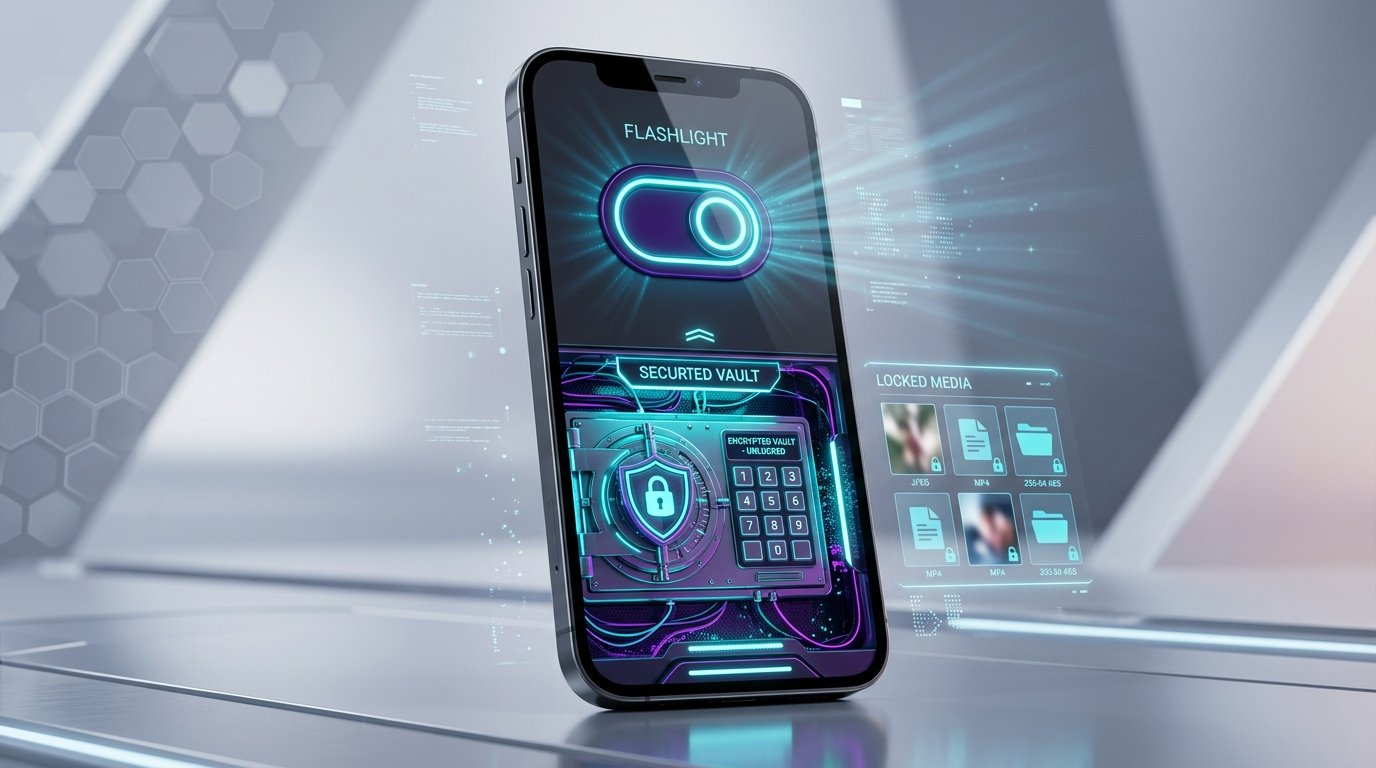
The application has a flashlight related appearance. This design can make the app look like a regular flashlight utility rather than a dedicated photo vault.
The main purpose is to give users a separate location for private content.
How Flashlight Locker Photo Vault Works
The basic concept is simple.
You install the application and create access protection. You can then select photos, videos, or other supported files from your device and move them into the private vault.
Once imported, the files can be accessed through the application rather than the regular gallery.
The current app description says users can hide and lock photos, videos, audio files, notes, and other files using a secret passcode. It also states that locked files can be unhidden and returned to the gallery when required.
The exact interface and available functions can change when the developer releases updates.
Main Features of Flashlight Locker Photo Vault
Photo Protection: One of the primary functions is hiding personal photos. You can move selected pictures from the normal gallery into the protected vault. This can be useful for personal memories, private photographs, screenshots, or other images that you do not want appearing in the standard gallery. After moving them into the vault, the photos are managed through the application’s protected area.
Video Protection: The application also supports private videos. Large video files can contain personal recordings, family memories, educational material, or other sensitive content. Keeping selected videos inside a protected vault can reduce casual access when someone else uses your phone. The Google Play listing specifically identifies photos and videos as supported protected content.
Audio File Protection: Flashlight Locker Photo Vault also supports hiding audio files. This can be useful for personal recordings, voice notes, or other audio content. Instead of keeping everything in a standard media folder, you can organize selected audio files inside the protected vault.
File Protection: The application is not limited to photographs and videos. Its current listing states that users can lock and hide files, notes, audio, gallery files, and other supported content. This makes the application more useful for people who want one location for different types of private media.
Passcode Protection: A passcode provides the main access control. The user creates a secret code and uses it to access protected content. Choose a passcode that is difficult for other people to guess. Avoid using simple combinations such as your birth year, phone number, or repeated digits. If the application provides a recovery option, configure it carefully and make sure you understand how it works.
Encryption: The current Google Play listing describes the application as providing encryption for photos, videos, and files. It also reports that data is encrypted in transit. Encryption can provide an additional security layer, but users should still review the application’s current privacy information and security details before storing highly sensitive information. A privacy vault should never be treated as a substitute for a complete device backup strategy.
Hidden Gallery: One of the main reasons users choose a vault application is to keep selected files away from the normal gallery. After moving supported files into the vault, they are intended to be managed through the private section of the application. This can help prevent someone casually browsing your gallery from seeing selected content.
Direct File Sharing: The application also advertises the ability to share locked files directly from the vault without first moving them back to the normal gallery. This can make the process more convenient when you need to send a protected photo or video. You should still check the recipient and destination carefully before sharing private content.
Unhide and Restore Files: Sometimes you may want to return a protected file to your normal gallery. The application provides an option to unlock or unhide protected files. This can be useful when you want to edit a photo in another application or move a video to another location. Before uninstalling the vault application, make sure you have safely restored or backed up any important files.
Flashlight Style Interface: The flashlight appearance is one of the application’s distinctive characteristics. Instead of presenting itself as a conventional photo vault, the application uses a flashlight related interface. The goal is to make the application less obvious to casual users. However, users should understand that an app’s appearance alone does not guarantee security. The actual protection depends on access controls, encryption, storage practices, permissions, and the application’s overall security design.
Benefits of Flashlight Locker Photo Vault
Better Privacy: A private vault can reduce casual access to selected photos and videos. This is useful when family members, friends, colleagues, or children occasionally use your smartphone. Instead of keeping everything in the standard gallery, you can place selected files behind a separate access mechanism.
Organized Private Storage: A vault can help separate private content from ordinary media. You can keep regular photographs in your normal gallery while moving selected personal files into the protected area. This creates a clearer separation between everyday media and private content.
Protection From Casual Browsing: If someone opens your gallery, hidden files may not appear in the normal browsing experience. This does not mean the files are impossible to discover under every circumstance. Device settings, file managers, backups, application behavior, or technical issues can affect privacy. Use the vault as one layer of protection rather than your only security measure.
Convenient Media Management: Managing photos, videos, audio, and other files through one application can be convenient. You can move files into the vault, view protected content, share selected files, or restore them when needed. The current app listing specifically promotes support for several types of media and files.
How to Use Flashlight Locker Photo Vault
Step 1: Install the Application: Install the application from a trusted source. Check the developer name, application details, reviews, permissions, and current update information before installation. The current Google Play listing identifies the developer as BHAVESHBHAI RAMESHBHAI BARAIYA.
Step 2: Open the Application: Launch the application after installation. Follow the initial setup instructions. The application may request access to photos, videos, files, or other device features required for its functions. Review each permission before granting access.
Step 3: Set Your Security Method: Create the required passcode. Choose a code that other people cannot easily guess. Do not share your passcode through messages or social media.
Step 4: Import Photos: Select the photographs you want to protect. Use the application’s import or hide option. Confirm the operation. Check that the photos appear correctly inside the vault before removing or modifying the original files.
Step 5: Import Videos: Follow the same process for videos. Large files can take longer to move or process. Make sure your device has sufficient storage space.
Step 6: Check the Vault: Open the protected section and confirm that your files are available. Test opening a few photos and videos. This helps you identify problems before moving a large collection.
Step 7: Restore Files When Needed: When you want to use a protected file elsewhere, use the application’s unlock or unhide function if available. Confirm that the file appears correctly in your gallery or selected destination.
Flashlight Locker Photo Vault for Photos
Photos are among the most common types of content protected by vault applications. You may want to protect family photographs, personal screenshots, scanned documents, private memories, or images used for work. Moving selected images into a separate protected area can reduce accidental exposure. However, always keep an independent backup of important photographs. A vault application should not become the only location where you store irreplaceable images.
Flashlight Locker Photo Vault for Videos
Videos can occupy significant storage space. If you move a large collection into a vault, check your device’s available storage before starting. Keep important videos backed up. This is especially important because user reviews on the current Google Play listing include a report from May 2026 describing an instance where a user said their stored photos and videos disappeared from the app. This is an individual user report, not proof that the application routinely loses data, but it shows why maintaining independent backups is important.
Privacy and Data Safety
Privacy information deserves attention when using any application that handles personal photos and videos. The current Google Play Data Safety section says the developer may share certain data types with third parties and may collect several categories of data, including location and personal information. It also states that data is encrypted in transit and that users can request deletion of data. These disclosures can change as applications receive updates. Review the current Data Safety information before storing sensitive content. Also check the application’s privacy policy and permissions.
Is Flashlight Locker Photo Vault Safe
The application provides privacy focused features such as passcode protection, hiding, and claimed encryption. However, no application should automatically be considered completely secure. Security depends on several factors. The application’s implementation. The encryption system. Device security. Application permissions. Operating system security. Developer practices. Backup procedures. Your own password management. For important personal data, use multiple security layers. Keep your smartphone protected with a strong screen lock. Keep Android updated. Use secure backups. Do not install suspicious applications.
Advantages of Flashlight Locker Photo Vault
Private Media Storage: It provides a dedicated location for selected private files.
Multiple File Types: The application supports photos, videos, audio, notes, and other files according to its current listing.
Passcode Protection: Protected files can be secured with a secret passcode.
File Sharing: The app advertises direct sharing of protected files without first unhiding them.
Simple Concept: The basic idea is easy to understand, even for users who have limited experience with privacy applications.
Flashlight Interface: The flashlight style interface provides a less obvious appearance than a traditional photo vault.
Limitations: A photo vault cannot protect your entire device. It does not automatically prevent screenshots. It does not protect accounts from phishing. It does not replace your phone’s screen lock. It does not guarantee that deleted files can be recovered. It does not eliminate the need for backups. It may require access to your media files. Privacy disclosures may change. Some users may experience application bugs or file management problems. These limitations are important when deciding what information to store inside the application.
How to Protect Your Vault Data
- Use a strong phone lock.
- Use a unique vault passcode.
- Keep Android updated.
- Install applications from trusted sources.
- Maintain an independent backup.
- Avoid storing your only copy of important files in the vault.
- Review application permissions.
- Check privacy disclosures regularly.
- Do not share your vault credentials.
- If you change phones, verify that your important files have transferred successfully before resetting your old device.
Common Problems
Forgotten Passcode: If you forget your passcode, check the application’s official recovery process. Do not rely on unofficial websites or unknown recovery tools. A recovery feature may have security implications, so review how it works before enabling it.
Common Flashlight Locker Photo Vault Problems and Solutions
Photos Are Missing: Check the vault carefully. Restart the application. Check whether the files were moved to another folder. Do not immediately uninstall the application. If the files are important, investigate the problem before making changes that could overwrite or remove stored data.
Videos Are Not Playing: Check whether the original video format is supported. Confirm that the file was imported correctly. Try another supported video. Make sure sufficient storage is available.
Files Disappear After an Update: Check the application’s current support information. Do not clear application data before confirming that your files are backed up. Clearing application data can permanently remove locally stored information in some applications.
App Cannot Access Photos: Check Android’s permission settings. Give only the permissions required for the application’s intended functions. If the permission was previously denied, you may need to enable it manually in system settings.
Frequently Asked Questions
What Is Flashlight Locker Photo Vault?
It is a privacy application disguised as a functional flashlight utility. It conceals an encrypted secret vault where users can securely hide private photos and videos.
Can I Hide Photos With Flashlight Locker?
Yes. The application is designed to move selected photos into a private vault protected by a passcode. ( Google Play )
Can I Hide Videos?
Yes, the application allows you to hide videos inside its protected storage container. Locked videos disappear from your phone gallery and require a passcode to view.
Can I Protect Audio Files?
Yes. The current application listing includes audio files among the supported content types. ( Google Play )
Does Flashlight Locker Use a Passcode?
Yes, the app protects your hidden files with a secret numeric PIN or password. Users must enter this code on the flashlight interface to reveal the vault.
Can I Share Files From the Vault?
Yes. The application states that users can share locked files directly without first unhiding them. ( Google Play )
Should I Keep a Backup of My Vault Files?
Yes. You should maintain an independent backup of important photos and videos. A vault should not be your only copy of irreplaceable content.
Can I Recover Deleted Files From the Vault?
Recovery is not guaranteed. The ability to recover deleted files depends on the application, device storage, backups, and the circumstances of deletion.
Does the App Collect Data?
Like many free utilities, the application may collect basic analytics and device diagnostic data for ads. Check the developer privacy policy before storing confidential personal information.
Final Thoughts
Flashlight Locker Photo Vault provides a convenient way to separate personal photos, videos, audio, notes, and other files from your regular gallery. Its main features include hidden storage, passcode protection, file locking, claimed encryption, and direct sharing of protected files.
The flashlight style design gives the application a different appearance from conventional photo vaults. However, the appearance of an application does not determine its security.
If you use a privacy vault, protect it with a strong passcode, review its permissions, check its current privacy disclosures, keep your phone updated, and maintain independent backups of important files. This approach gives you better control over your personal photos and videos while reducing the risk of losing valuable data.