What Is the Pic on Leaf Trend
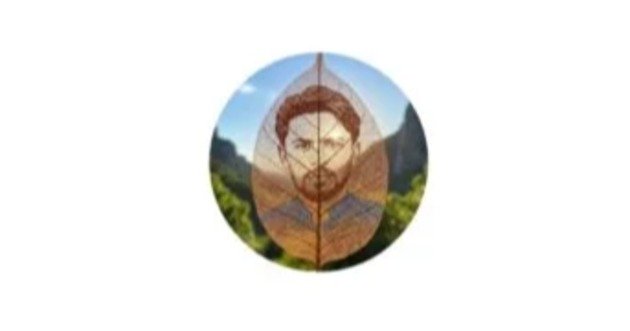
Pic on Leaf is an AI image editing style where a photograph or visual design appears on the surface of a leaf. The leaf becomes the main creative element of the image.
The picture can appear in several styles.
A realistic portrait printed on a green leaf.
A face naturally blended into leaf veins.
A hand holding a leaf with a miniature portrait on it.
A glowing image inside a transparent leaf.
A digital artwork painted across the surface.
A photograph surrounded by water drops and natural plants.
The idea works well because it combines a familiar portrait with detailed natural textures. Leaf veins, shadows, water droplets, sunlight, and green backgrounds can make the image look more creative.
The final result can be realistic, artistic, cinematic, or completely imaginative.
How Google Gemini Can Create Pic on Leaf Images
Google Gemini supports image generation and editing through written prompts. You can create a new image from a description or upload an existing photograph and request changes.
Google’s official Gemini documentation explains that users can upload an image and ask Gemini to edit it. Users can also upload multiple images and create a new image based on them. Google also recommends clearly describing the subject, visual style, and background when writing an image prompt.
For a Pic on Leaf image, you can upload your portrait and explain that your picture should appear naturally on a leaf.
For example, you can write:
Create a realistic macro photograph of a fresh green leaf with my uploaded portrait naturally printed on its surface. Preserve my facial identity, hairstyle, facial features, and natural appearance. Show detailed leaf veins, realistic water droplets, soft sunlight, blurred green background, and professional macro photography.
The AI will attempt to combine the uploaded image with the requested natural scene.
Why Prompts Matter in Pic on Leaf Editing
The prompt controls the direction of the final image.
A short prompt such as:
- Put my picture on a leaf.
- may produce an image, but you have less control over the result.
- A detailed prompt provides more instructions.
- You can describe:
- The person.
- The leaf.
- The angle.
- The background.
- The lighting.
- The image style.
- The colors.
- The details that should remain unchanged.
- A better prompt gives the AI a clearer target.
- For example:
Create a highly realistic macro photograph of a large fresh green leaf resting in a natural forest environment. Place the uploaded portrait naturally on the center of the leaf as detailed artistic leaf printing. Preserve the exact facial identity, hairstyle, facial structure, and natural expression. Show realistic leaf veins, tiny water droplets, soft morning sunlight, shallow depth of field, and a blurred green background. Make the final image highly detailed and photorealistic.
The Best Prompt Structure
You can use a simple structure for most Pic on Leaf images.
Main subject.
Editing action.
Leaf description.
Background.
Lighting.
Style.
Details to preserve.
A general formula looks like this:
Create a realistic image of [subject] appearing naturally on [type of leaf]. Preserve [important features]. Add [background]. Use [lighting]. Show [details]. Create the final result in [style].
This structure can help you create many different versions without changing the main idea.
Classic Pic on Green Leaf Prompt
Use this prompt for a simple and realistic result.
Create a realistic macro photograph of a fresh green leaf with the uploaded portrait naturally printed on its surface. Preserve the exact face, hairstyle, facial features, expression, and natural identity of the person. Show detailed leaf veins, realistic green texture, tiny water droplets, soft natural sunlight, and a beautifully blurred garden background. Professional macro photography, sharp details, realistic shadows, natural colors, high quality.
Portrait Inside a Leaf Prompt
This style makes the portrait look naturally integrated into the leaf.
Create a close up artistic photograph of a large green leaf with the uploaded portrait beautifully integrated into the center. Make the portrait appear naturally formed within the leaf texture and veins. Preserve the person’s exact facial identity, hairstyle, expression, and natural features. Add soft sunlight, realistic shadows, detailed leaf texture, small water droplets, and a blurred natural background. Photorealistic macro photography.
Hand Holding a Pic on Leaf Prompt
This is one of the most attractive variations.
Create a realistic close up photograph of a human hand gently holding a fresh green leaf. Display the uploaded portrait naturally and clearly on the surface of the leaf. Preserve the exact face, hairstyle, expression, and identity of the person. Show detailed leaf veins, realistic skin texture, natural sunlight, small water droplets, soft background blur, and professional macro photography. Make the image look completely realistic.
Golden Leaf Portrait Prompt
You can create a luxury or artistic version by changing the leaf color.
Create an elegant artistic image of a beautiful golden autumn leaf with the uploaded portrait naturally printed on its surface. Preserve the exact face, hairstyle, expression, and facial identity. Add warm golden sunlight, detailed leaf veins, realistic texture, soft shadows, and a blurred autumn forest background. Create a cinematic and highly detailed photography style.
Water Droplets Pic on Leaf Prompt
Water droplets can add detail and realism.
Create an ultra realistic macro photograph of a fresh green leaf covered with crystal clear water droplets. Place the uploaded portrait naturally on the center of the leaf without changing the person’s face, hairstyle, expression, or identity. Show detailed leaf veins, realistic reflections inside the water droplets, soft natural lighting, and a blurred green forest background. High detail, photorealistic, professional macro photography.
Floating Leaf Portrait Prompt
This prompt creates a more imaginative image.
Create a cinematic scene of a fresh green leaf floating gently in the air. The uploaded portrait should appear naturally printed on the surface of the leaf. Preserve the exact face, hairstyle, facial identity, and natural expression. Add soft sunlight passing through the leaf, floating particles, a peaceful forest background, realistic shadows, and cinematic depth of field. Make the final image highly realistic and visually detailed.
Leaf on Water Prompt
This variation creates a calm and natural scene.
Create a realistic photograph of a fresh green leaf floating peacefully on clear water. Place the uploaded portrait naturally on the surface of the leaf. Preserve the person’s exact facial identity, hairstyle, facial features, and expression. Add realistic water reflections, small ripples, detailed leaf veins, soft morning sunlight, and a natural blurred background. Professional photography, photorealistic quality.
Glowing Pic on Leaf Prompt
A glowing design can create a fantasy style.
Create a magical and realistic image of a fresh green leaf with the uploaded portrait glowing softly from within its surface. Preserve the exact facial identity, hairstyle, expression, and natural appearance. Show detailed leaf veins illuminated by gentle green and golden light. Add tiny glowing particles, soft mist, a dark natural background, and cinematic lighting. Highly detailed, realistic fantasy photography.
Black Leaf Portrait Prompt
A dark style can create a dramatic social media image.
Create a dramatic close up photograph of a dark black leaf with the uploaded portrait naturally printed on its textured surface. Preserve the exact face, hairstyle, facial features, and natural expression. Add subtle water droplets, cinematic side lighting, detailed leaf veins, a dark blurred background, and realistic shadows. Professional editorial photography, highly detailed, premium visual quality.
Autumn Leaf Prompt
This style works well for warm and colorful images.
Create a realistic autumn scene with a beautiful orange and red leaf placed in the foreground. Naturally display the uploaded portrait on the surface of the leaf. Preserve the exact facial identity, hairstyle, expression, and natural appearance. Add warm sunlight, detailed leaf texture, falling leaves, soft background blur, and cinematic autumn colors. High quality professional photography.
Miniature Portrait on a Leaf Prompt
You can create a small artistic portrait effect.
Create an ultra detailed macro photograph of a tiny realistic portrait of the uploaded person appearing on the center of a fresh green leaf. Preserve the exact face, hairstyle, expression, and natural identity. Make the portrait look naturally printed into the leaf texture. Add visible veins, water droplets, soft sunlight, and a blurred garden background. Photorealistic macro photography with realistic depth of field.
How to Preserve Your Face in the Final Image
- Face consistency is important when you upload a portrait for editing.
- Your prompt should clearly explain what must remain unchanged.
- You can include instructions such as:
- Preserve the exact facial identity.
- Keep the original facial structure.
- Keep the hairstyle unchanged.
- Preserve the natural skin tone.
- Keep the same facial expression.
- Do not alter the person’s identity.
- For example:
- Use the uploaded portrait as the exact facial reference. Preserve the person’s identity, facial structure, hairstyle, skin tone, facial expression, and natural appearance. Do not replace or significantly modify the face.
- Clear instructions can help Gemini understand which parts of the uploaded image matter most.
How to Create a Pic on Leaf Image in Gemini
- The basic process is straightforward.
- First, open Gemini.
- Then select the image creation or editing option available in your version of Gemini.
- Upload the photograph you want to use.
- Write your Pic on Leaf prompt.
- Submit the request.
- Review the generated image.
- If the face or leaf does not look correct, continue with another instruction.
- You can say:
- Keep the current leaf and background, but restore the original facial identity from my uploaded photograph.
- Or:
- Make the portrait blend more naturally into the leaf surface while preserving the original face.
- This conversational editing process allows you to refine the image step by step.
Best Way to Write a Pic on Leaf Prompt
Start with the most important instruction.
Tell the AI what image you are uploading.
Then describe the leaf.
Then explain how the portrait should appear.
Finally, add the environment and photography style.
For example:
Use my uploaded portrait as the main subject. Create a fresh green leaf in a natural garden. Place my portrait naturally on the surface of the leaf as realistic artistic printing. Preserve my exact facial identity and hairstyle. Add detailed leaf veins, water droplets, soft sunlight, realistic shadows, and a blurred green background. Create professional macro photography.
This approach is clearer than using several unrelated instructions.
Common Problems and Their Solutions
The Face Changes Too Much: Use a stronger instruction. Write: Preserve the exact facial identity from the uploaded image. Do not change facial structure, hairstyle, skin tone, or expression. You can also request another edit after Gemini generates the first version.
The Picture Does Not Blend Into the Leaf: Try this instruction: Blend the portrait naturally into the leaf texture and follow the visible leaf veins. Do not make the portrait look like a separate rectangular photograph.
The Leaf Looks Artificial: Add more natural details. Mention: Detailed leaf veins. Natural imperfections. Water droplets. Realistic shadows. Soft sunlight. Macro photography. Shallow depth of field.
The Background Is Too Distracting: Request a simple background. For example: Use a soft blurred green garden background with shallow depth of field. Keep the leaf and portrait as the main focus.
Pic on Leaf Prompts for Social Media Profile Pictures
Social media users can create a unique profile image using the leaf concept.
Try this prompt:
Create a premium social media profile image using the uploaded portrait. Place my realistic portrait naturally on a fresh green leaf. Preserve my exact facial identity, hairstyle, facial structure, and natural appearance. Add detailed leaf veins, small water droplets, soft golden sunlight, and a blurred green background. Make the leaf and portrait the central focus. Professional macro photography, sharp details, realistic colors.
Pic on Leaf Prompt for Nature Lovers
Create a peaceful and realistic nature inspired artwork featuring a fresh green leaf in the center of a forest. Naturally place the uploaded portrait on the surface of the leaf. Preserve the exact facial identity and natural appearance. Add soft morning sunlight, water droplets, detailed leaf veins, distant trees, light mist, and realistic depth of field. Create a calm, natural, and photorealistic scene.
Pic on Leaf Prompt for Couples
You can also combine two portraits.
Create a beautiful romantic macro photograph of a large green leaf with two uploaded portraits naturally integrated into its surface. Preserve both people’s exact facial identities, hairstyles, expressions, and natural appearances. Add detailed leaf veins, tiny water droplets, warm sunset lighting, soft natural shadows, and a beautifully blurred garden background. Create a realistic and elegant photography style.
Pic on Leaf Prompt for a Family
Create a realistic artistic image of a large fresh green leaf with the uploaded family portrait naturally displayed on its surface. Preserve the facial identity and natural appearance of every person. Add detailed leaf veins, realistic textures, soft natural sunlight, water droplets, and a peaceful garden background. Professional macro photography, sharp focus on the leaf, natural depth of field.
Creative Variations You Can Try
The Pic on Leaf trend does not need to follow only one design.
You can experiment with different ideas.
Use a red leaf.
Use a golden autumn leaf.
Create a transparent leaf.
Add rain droplets.
Place the leaf on water.
Show the leaf floating in the air.
Create a glowing portrait.
Use a dark cinematic background.
Add butterflies around the leaf.
Create a magical forest scene.
Use soft sunrise lighting.
Create a night scene with moonlight.
Each variation can produce a different visual result.
Why Macro Photography Works Well
Macro photography focuses closely on small objects and details.
A leaf has many natural details.
The veins create patterns.
Water droplets create reflections.
The surface has texture.
Sunlight creates small shadows.
When you include words such as macro photography, close up, shallow depth of field, and detailed texture, the AI receives more information about the type of composition you want.
For example:
Ultra detailed macro photograph, extreme close up of a fresh green leaf, visible veins, natural texture, tiny water droplets, shallow depth of field, soft natural light, photorealistic.
You can then add your portrait editing instruction to this base prompt.
Tips for Better Results
- Use a clear original photograph.
- Choose a portrait with a visible face.
- Avoid heavily blurred source images.
- Write detailed instructions.
- Clearly state what should remain unchanged.
- Use one main visual concept.
- Add realistic details.
- Mention the lighting direction.
- Specify the photography style.
- Refine the result with follow up prompts.
- Do not expect the first generated image to be perfect.
- Small changes through additional prompts can improve the result.
Privacy and Responsible Use
When editing personal photographs, use images that you have permission to upload and modify.
Avoid using another person’s private photograph without permission.
Review the final image before publishing it.
AI generated and edited images can sometimes contain unexpected changes. Check facial details, text, objects, and other important elements.
If you create images for business or professional purposes, make sure the final visual accurately represents the person, product, or brand.
Frequently Asked Questions
What Is Pic on Leaf Google Gemini Editing?
It is a creative AI art prompt style where photographs are blended into realistic leaf textures. The model generates delicate leaf veins and macro photography lighting seamlessly.
Can I Upload My Own Picture?
Yes, you can upload your personal photo directly into Google Gemini image prompts. You can then request the model to superimpose your portrait onto natural foliage.
How Can I Keep My Face Unchanged?
Specify detailed constraints in your prompt requesting the AI to retain exact facial features and skin tones. Explicit instructions help avoid unwanted structural alterations to your portrait.
Can I Change the Type of Leaf?
Yes. You can request a green leaf, autumn leaf, golden leaf, red leaf, dark leaf, or another creative variation.
Can I Add Water Droplets?
Yes. Add detailed instructions such as realistic water droplets, natural reflections, detailed leaf veins, and macro photography.
Can I Create a Realistic Image?
Yes, by including keywords like photorealistic macro photography, organic lighting, and natural depth of field in your prompt. These terms instruct the AI to render authentic textures.
Why Does the AI Change My Face?
AI editing can sometimes modify facial details while generating a new composition. A clearer reference image and stronger instructions about preserving identity can improve consistency.
Can I Continue Editing the Generated Image?
Yes, Gemini allows conversational follow-up prompts to refine your generated artwork. You can request changes to lighting, background contrast, or texture sharpness step by step.
Final Thoughts
Pic on Leaf Google Gemini editing offers a simple way to transform an ordinary portrait into a creative nature based image. The key is a clear prompt.
Describe the uploaded portrait. Explain how the picture should appear on the leaf. Mention the leaf texture, lighting, water droplets, background, and photography style. Most importantly, clearly state which facial features and details should remain unchanged.
You can create realistic green leaf portraits, autumn designs, glowing fantasy images, floating leaves, water scenes, couple portraits, family artwork, and social media profile images.
The best results usually come from starting with a clear concept and refining the image with additional instructions. A detailed prompt gives you more control over the final composition and helps create a natural Pic on Leaf effect.



